

Laposta glossary
Acceptratio
The acceptratio is the percentage of sent newsletters that have been accepted by your subscribers’ mail servers. An acceptratio of 98% means that 98 out of 100 subscribers actually receive your newsletter in their inbox.
If a newsletter is not accepted, this is called a hard bounce. There can be several reasons for this. The most common one is that the email address no longer exists.
A sender address for which DMARC has been set up can also lead to hard bounces. You can resolve this by authenticating your domain.
Active subscriber
Active subscribers are all subscribers in your list(s) to whom you can send a newsletter directly. You can find them on the ‘active’ tab of a list. Subscribers on the ‘unsubscribed’ tab (they have unsubscribed) and the ‘cleaned’ tab (they have caused a bounce or spam complaint) do not count towards the number of active subscribers.
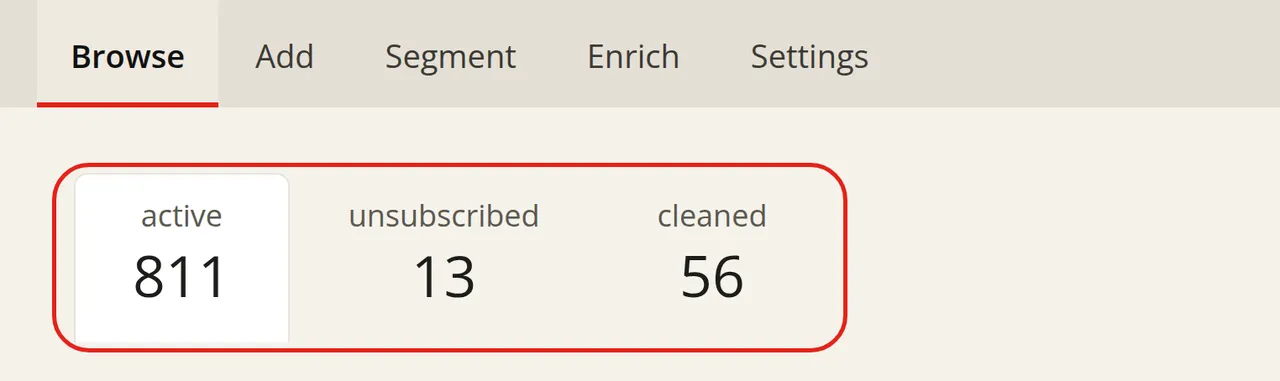
How to view these three groups is explained separately.
Each list in your account is separate from your other lists: no subscriber data is shared between lists. If the same email address appears as an active subscriber in three different lists, that subscriber counts three times as an active subscriber.
Unique subscribers
Unique subscribers are all unique email addresses you have added to your account over the entire lifetime of your (free) account. If the same email address appears in three different lists, that subscriber counts once as a unique subscriber.
Active and unique subscribers in your account
In your account overview under ‘Subscription’, you can see how many active subscribers you are currently using. If you have a free account, you can also see how many unique subscribers you have had in your account so far.
Whether you qualify for a free account depends on the number of active and unique subscribers across all your lists combined. Your subscription rate depends solely on the number of active subscribers. You may use Laposta for free up to 2,000 active and/or unique subscribers. You can read what else applies under the limitations of the free account.
Because the number of active subscribers fluctuates due to subscriptions and unsubscribes, Laposta bases your group on the average number of active subscribers. Laposta tracks this monthly average, and the annual average based on it, for you.
Unsubscribe rate
The unsubscribe rate shows the number of subscribers who have unsubscribed via the unsubscribe link in your newsletter, compared to the total number of accepted newsletters.
An unsubscribe rate of 1% means that on average one in 100 subscribers has unsubscribed following your newsletter.
Visits
Visits are all the data about the visits your subscribers have made to your website(s) from your campaign.
This includes the number of additional visits to your website(s), the total duration of those additional visits, the number of pageviews and the details of each individual visit. You can find these statistics under Results → Visits.
Bounces
A bounce occurs when your newsletter cannot be delivered to your subscriber’s email address. Your newsletter is then returned to Laposta’s servers. Whether this problem is permanent or temporary determines what happens to the subscriber next.
Hard bounces
With a hard bounce, your newsletter permanently cannot be delivered, usually because the email address does not (or no longer) exist. Because this is a structural problem, Laposta automatically cleans the subscriber: the subscriber moves from your active subscribers to the ‘cleaned’ tab and you can no longer email them. This is important for your own reputation and that of Laposta: it prevents your subscribers’ mail servers and internet providers from rejecting your email traffic via a spam block. Such an address is also placed on the global blocklist.
Subscribers who have been cleaned after a hard bounce can be found via Subscribers → Browse on the ‘cleaned’ tab. Click ‘Details’ for a subscriber. If the address is incorrect, enter the correct address and click ‘Save new address and activate’. If you are certain that the address is valid, click ‘Reactivate’. This can be done once per address, and a maximum of 10 times per day and 30 times per month per account. You can read exactly how this works under reactivating cleaned subscribers.
Subscribers who have led to a complaint at Yahoo and Microsoft are also cleaned. You cannot reactivate these subscribers with the same email address.
Hard bounce for a full Gmail inbox
A full inbox is usually a soft bounce, but for Gmail addresses this is processed as a hard bounce. This is because the entire storage space (15 GB) of the Google account has been used up, which is rarely a temporary problem.
Are you certain that the inbox has space again, for example because a personal email does get through? Then click ‘Reactivate’ for the cleaned subscriber.
Soft bounces
With a soft bounce, your newsletter cannot be delivered due to a temporary problem, usually because the recipient’s inbox is full or the recipient’s mail server is faltering.
Your subscriber will remain in your list of active subscribers, as the newsletter may get through next time. Only after a soft bounce for six consecutive newsletters is the subscriber automatically cleaned: the subscriber moves to the ‘cleaned’ tab and you can no longer email them.
Viewing bounces per subscriber
Laposta tracks the statistics for each subscriber. If a hard or soft bounce has occurred for a subscriber, you can see this under Subscribers → Browse via ‘Details’.
Viewing the cause of a bounce
You can find the number of hard and soft bounces for a campaign, along with the corresponding email addresses, under Results → Unsubscribes → Bounces. The table shows an explanation next to each bounce.
For hard bounces, the general explanations are:
- Email address does not exist
- Mailbox is not available
- Mail server does not exist
- No connection possible
For soft bounces, the general explanations are:
- Mailbox is full, temporary
- Mail server is full, temporary
- No connection possible, temporary
Next to these general explanations, there is always a number in brackets, such as 101, 446 or 511. These are SMTP status codes that allow technical experts to see what exactly went wrong during delivery.
Deliverability
Deliverability is the extent to which your newsletter actually ends up in your subscribers’ inboxes. It is closely linked to your sending reputation: your newsletter should not get caught in the spam filter or end up in the spam folder.
Because spam filter techniques are constantly being refined to keep spammers out, good deliverability requires continuous attention from both Laposta and you.
Three factors play a role in this:
- The reputation of the (technical) sender
- The reputation of the sender address
- The content and layout of your newsletter
The technical sender reputation is Laposta’s responsibility. The reputation of the sender address and the content and layout of your newsletters are (partly) in your own hands.
What you can do yourself against spam filters
First and foremost, ensure the high quality of your list(s). By law, you may only send your newsletter to existing customers and subscribers who have given explicit permission. Make sure you stick to this.
In addition, ensure relevant content and a good subject: the sender address and the subject are the first things your subscriber sees. This prevents subscribers from marking your newsletter as spam. Personalising also helps your newsletter land well.
What Laposta does for good deliverability
Laposta also monitors the quality of your list(s). Subscribers with a hard bounce are automatically cleaned, as are subscribers with a soft bounce for six consecutive newsletters. Laposta does not simply allow spam-sensitive items such as attachments, and you must confirm sender addresses first.
On a technical level, Laposta authenticates itself as an email sender using SPF (Sender Policy Framework) and DKIM (DomainKeys Identified Mail). With SPF, your subscriber’s mail server checks whether Laposta’s mail server is authorised to send your newsletter. With DKIM, that mail server checks whether Laposta’s signature matches the signature of your newsletter.
At Laposta, you share the sending IP-addresses with other customers. Your sending reputation therefore partly depends on those other customers. To keep delivery quality high, Laposta automatically ranks all newsletters by quality and assigns them to different sending clusters. Incidentally, when assessing your sending reputation, providers increasingly value your domain reputation over your IP reputation.
Larger customers can get a dedicated IP-address within Laposta to build up a completely independent sending reputation.
Authenticating your domain
For optimal delivery of your newsletters, you can authenticate your domain.
DMARC
DMARC (Domain-based Message Authentication, Reporting & Conformance) is a security standard that protects email domains against misuse such as phishing and spoofing. If you receive a message stating that you must authenticate your domain first, your mail server host has probably made DMARC mandatory.
What DMARC checks
With DMARC, recipients can use SPF and DKIM to check whether an email genuinely originates from the specified domain:
- SPF (Sender Policy Framework): a list of authorised servers that are allowed to send email on behalf of the domain.
- DKIM (DomainKeys Identified Mail): a cryptographic digital signature that confirms the email has not been altered in transit.
DMARC also gives domain owners insight into the emails sent from their domain and into potential misuse attempts. In addition, they can configure what should happen to invalid emails, such as marking them as spam or blocking them completely.
If your domain uses DMARC
If you use your own domain name, you can use it in Laposta by authenticating your domain.
If you use an email address from a provider that has set up DMARC, such as Gmail, Ziggo or Telenet, you can use that address as a sender address, but Laposta will automatically adjust your sender address upon sending. Read more under using a free email address as a sender address.
Joe
A Joe is a custom template. One of our colleagues first creates a draft design and then converts it into a custom-designed and programmed HTML template. This allows for more possibilities than with the drag & drop editor, and the template can be made digitally accessible. Allow for about six weeks.
The layout is then fixed in the template. You fill in your newsletters in the Joe editor, where you can only edit the elements that have been unlocked in the design.
A custom template is only available with a paid account.
Opens
Opens are all the statistics of your campaign regarding the viewing of your newsletters.
This includes the number of sent, accepted and opened newsletters, as well as the number of newsletters that were immediately skipped, skimmed or read at length. You can find these statistics under Results → Opens.
Clicks
Clicks are all the statistics of your campaign regarding your subscribers’ clicking behaviour.
Under Results → Clicks, you can see how many subscribers clicked through from your newsletter, how often the webversion was viewed and how often your newsletter was printed.
Laposta cannot measure clicks on a mailto: link. Such a link directly opens the email client on your subscriber’s computer and therefore does not pass through Laposta’s servers, unlike regular links.
Clickratio
The clickratio is the percentage of newsletters in which at least one link was clicked, compared to the total number of accepted newsletters.
Laposta can detect a click because every link in your newsletter first passes through Laposta’s servers. The click is registered there before the visitor is redirected to the destination page.
The clickratio is always lower than the openratio, because a click also counts as an open. How high the clickratio is depends on the nature, number and placement of the links. A clickratio of 10% is fine: on average, 10 out of 100 subscribers then click through from your newsletter.
Privacy
Tracking reading and clicking behaviour provides useful information, but it does infringe on your recipients’ privacy. You can read which settings are available for this under tracking and reporting.
Label
A label is a tag that you come up with yourself and attach to a subscriber, such as Customer, Quote or Trade fair. A single subscriber can have multiple labels, and each list has its own labels.
You use labels to filter your subscriber overview, to select recipients for a campaign, as a condition in a segment and as a starting point or action in an automation. Read how to create, assign and manage them under organising subscribers with labels.
List
A list is a subscriber database. To be able to send a newsletter, one piece of data per subscriber is required: the email address. In addition, you can store dozens of extra details per subscriber, such as gender, age, city and telephone number. You use this data to personalise your newsletters, as research shows that messages are significantly more successful when personalised.
You can create a separate list for each target group. When creating a campaign, you tick which list(s) your newsletter will be sent to. You can also divide a list into sub-target groups (segments), so that you can send a newsletter to part of a list.
Laposta tracks statistics per list. On the overview page under Subscribers, you can see, among other things, the number of active subscribers, the number of campaigns for which the list has been used and the total number of sent newsletters. You can also see the acceptratio, openratio, clickratio and unsubscribe rate per list there, allowing you to compare the performance of different lists. You can read what is recorded exactly under the statistics Laposta tracks per list.
Openratio
The openratio is the percentage of opened newsletters compared to the total number of accepted newsletters. A newsletter counts as opened as soon as the images are loaded or a link is clicked.
Laposta measures this by adding an invisible image to every newsletter. When the images are loaded, this image is requested from Laposta’s servers.
Opens cannot always be determined with complete accuracy:
- Many email clients block images by default to combat spam (spammers used to use this method to check whether an address was active). As long as the recipient does not load the images and does not click anything, Laposta cannot see that the newsletter has been read.
- Conversely, some security programs automatically load images and click on links to protect the recipient against phishing (clicks by robots and scanners).
- Gmail displays images immediately and stores them itself, and images are also loaded immediately on many mobile phones (such as the iPhone). As a result, you may see many opens for the same address.
The openratio is therefore not an exact measure, but it does give a good impression of how your newsletter is received. An openratio of 20 to 40% is normal, and for very active target groups this sometimes rises to over 75%. At 38%, an average of 38 out of 100 subscribers open your newsletter.
Privacy
Tracking reading and clicking behaviour provides useful information, but it does infringe on your recipients’ privacy. You can read which settings are available for this under tracking and reporting.
Opt-in
By law, you may only send newsletters to existing customers and to subscribers who have given explicit permission in advance. This permission is called opt-in.
For a subscribe form, there are three types of opt-in:
- Single opt-in: someone subscribes via the form and does not need to confirm this. The subscriber is added directly to your list of active subscribers. You can automatically send this new subscriber a welcome email. The advantage is subscribing in a single step; the disadvantage is that someone can subscribe another person. This rarely happens, and the subscribed person can always unsubscribe immediately via the mandatory unsubscribe link in your newsletter.
- Confirmed opt-in: the new subscriber immediately receives a welcome email containing an unsubscribe link, so that someone who was subscribed against their wishes can unsubscribe again straight away.
- Double opt-in: the new subscriber first receives a confirmation email with a validation link. Only after clicking that link is the subscriber added as active. This way, you can be 100% certain that the person has given permission themselves. The disadvantage is that people regularly forget to confirm. However, you can manually resend the confirmation email.
Which type should you choose?
All three types are legally permitted and possible in Laposta. Single opt-in is enabled by default. If you want to use confirmed opt-in, leave single opt-in enabled and put an unsubscribe link in your welcome email (in newer accounts, you set this up as an automation).
Double opt-in is disabled by default: it is not required by law and Laposta almost always advises against it. See: Double opt-in. If you still want to use it and you have a paid account, please contact the helpdesk via helpdesk@laposta.nl or 0575 573216. Once double opt-in has been enabled for you, you can set your preference per list under Subscribers → Enrich → Subscribe.
Opt-out
Opt-out means that the recipient of a newsletter can unsubscribe, thereby indicating that they no longer wish to receive messages.
The rules for opt-out are laid down in the GDPR (General Data Protection Regulation) and the Dutch Telecommunications Act. With Laposta, you automatically comply with these requirements:
- Clear unsubscribe option: every newsletter must have an easily accessible unsubscribe link, usually at the bottom of the email. In Laposta, every newsletter automatically has an unsubscribe link and you cannot send a campaign without that link.
- Immediate processing: an unsubscribe request must be processed immediately or within a reasonable period. In Laposta, an unsubscribed subscriber is moved immediately and automatically from your active to your unsubscribed subscribers, so you can no longer send them a newsletter. See also how unsubscribing subscribers works.
- Free of charge: unsubscribing must not cost anything. Unsubscribing via Laposta is always free.
- Ease of use: unsubscribing must be simple, without requiring an account or additional details. With Laposta, your subscriber clicks the unsubscribe link and confirms the unsubscription with one additional click. This confirmation click prevents spam scanners, which automatically click all links in an email, from unsubscribing all your subscribers.
Overlay
An overlay adds a layer of extra information to visual material, such as a newsletter.
Under Results → Links → Overlay, you can find an overlay for every sent newsletter. There, you see your entire newsletter with the number of subscribers who clicked on each link and the total number of clicks.
Clicks on a mailto: link are not included here, because Laposta cannot measure them.
Variable
A variable is the name of a field in your list, such as first name, last name, city, telephone number, gender, age, profession, hobby, registration number or ID.
What do you use variables for?
- To personalise your newsletters and welcome email. Research shows that personalised newsletters are more successful.
- To segment, so you can send a newsletter to part of your list, for example only to subscribers in Gelderland.
- To include in a link in your newsletter. With a variable such as ID, you can, for example, have a subscriber log in to your website automatically.
How do you use variables?
You add variables to your list and subscribe form under Subscribers → Settings → Fields. There, you can also enter a default value per list. This default value only applies in newsletters; if someone leaves the field blank when subscribing, the field in your list remains blank.
When creating a campaign, you insert a variable via the editor in step 4, or when importing an HTML newsletter in step 3. While designing, you will see {{voornaam}}, for example.
Upon sending, Laposta fills in the subscriber’s value (for example, ‘Dear Henk’). If that value is empty, the default value of the list appears (for example, ‘Dear customer’), and without a default value, the space remains blank (‘Dear’).
In step 4, you can also specify a different default value for each placement by typing a comma and the value after the variable: {{voornaam, user}}. This value always overrides the default value of the list. This is useful if you use a variable multiple times in the same newsletter and do not want the same fallback text everywhere.
In two cases, the recipient will see the code itself (such as Dear {{voornaam}}):
- You send a testmail to an address that is not in your list(s).
- You send the campaign to multiple lists that have different default values for the same variable.
You can prevent this by specifying a value after a comma in step 4.
Template
A template is the reusable basic layout of your newsletter. This means you do not have to design a newsletter from scratch every time, and your campaigns will have a consistent look.
In a template, you use the drag & drop editor to define, among other things:
- the layout in sections and columns
- the header
- the background colour or image
- the font, text size and weight
- the size of headings
- the colour of links
- the border width
You need a template for every campaign, unless you import a ready-made newsletter from the internet or your computer. If you send different types of newsletters or email different target groups, you can use multiple templates side by side.
How do you get a template?
- Ready-made template: choose one of the dozens of free designs under Campaigns → Templates → Drag & drop, or in step 3 of the six-step plan (you can adjust the layout in step 4). See also how to get a template.
- Basic template: in the same place, choose a basic template to build your design from scratch in the drag & drop editor.
- Custom HTML template: import a custom-made template via Campaigns → Templates → Import.
- Have a custom template made: if you have a paid account, one of our colleagues can create a custom design for you.
Spam
Spam is an unsolicited message with a commercial (directly or indirectly aimed at sales), charitable or idealistic message. This applies to email, as well as SMS, MMS, telephone and fax. Sending an unsolicited personal message to a person or company you have already been in contact with is permitted.
Spamming is prohibited in the Netherlands, both to private individuals and to companies and organisations. The Netherlands Authority for Consumers and Markets (ACM) monitors this and can impose fines of up to 450,000 euros. Laposta strictly adheres to these rules and asks customers to do the same.
To not be considered spam, your newsletter must meet three legal requirements:
- Your identity is clear: in Laposta, you must provide a personal or company name (an alias or pseudonym is not permitted) and you can only send from a sender address approved by you.
- Unsubscribing is easy: every newsletter in Laposta must contain an unsubscribe link that automatically unsubscribes the recipient from future newsletters.
- Permission has been given: you only send to existing customers or subscribers who have given explicit permission in advance (opt-in), for example via a subscribe form on your website. You can draw people’s attention to this option in your online and offline communications. You are responsible for this yourself.
Also read the tips to prevent your newsletter from being marked as spam.
SPF
SPF stands for Sender Policy Framework. It prevents malicious parties from sending email on behalf of a domain they do not own (such as phishing emails that appear to come from a bank). The open nature of email also has an advantage: it enables Laposta to send emails on behalf of its customers.
How SPF works
The owner of a domain name specifies in the DNS settings which mail servers are allowed to send email on behalf of that domain. The receiving mail server can check this SPF information:
- If the email comes from an approved server, it is let through.
- If the email comes from an unlisted server, the receiving server rejects the email immediately or does not forward it to the recipient (although there are also mail servers that ignore SPF).
- If no SPF information is available, the email is processed normally.
What you need to set up yourself
For the standard use of SPF by Laposta’s mail servers, you do not need to set up anything. However, Laposta recommends that you authenticate your own domain.