

What are active, unsubscribed and cleaned subscribers?
For every subscriber, Laposta keeps track of whether you can still send them a newsletter. You can see this on the page Subscribers → your list → Browse. Above the table, there are three tabs, each showing the number of subscribers with that status.
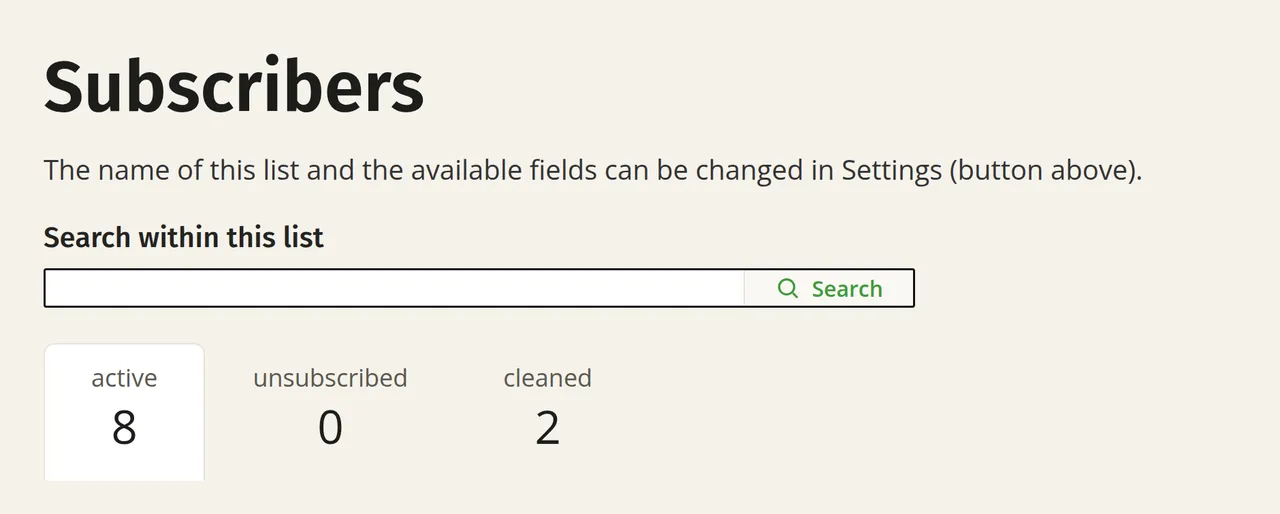
Together, the three tabs make up your entire list:
- ‘active’: subscribers you can send a newsletter to. Only these subscribers receive your campaigns.
- ‘unsubscribed’: subscribers who have unsubscribed via the unsubscribe link in a previous newsletter or via the web interface of Gmail or Outlook.com, and subscribers you have unsubscribed yourself.
- ‘cleaned’: email addresses that have resulted in a hard bounce or six consecutive soft bounces, email addresses on the global blocklist, and subscribers at Yahoo and Microsoft (such as Outlook.com, Hotmail.com and Live.com) who have clicked the spam button. Laposta receives automatic notifications of these spam complaints. You can no longer email cleaned subscribers.
If you use double opt-in, there is a fourth tab ‘unconfirmed’ for sign-ups that have not yet been confirmed. Subscribers who have been deleted from the list in the past 30 days are listed on the ‘deleted’ tab. You can still restore them there.
A cleaned subscriber usually involves an outdated or incorrect email address. Cleaning is a deliverability measure and not an error in your list. By keeping these email addresses out of your delivery, you maintain your sender reputation. Would you like to email an unsubscribed or cleaned subscriber again, for instance using a new email address or because the existing address works again? Read what is possible for each status in Reactivating unsubscribed subscribers.
Searching your list
If you are looking for a single email address, use the ‘Search within this list’ search bar above the table. It searches the active, unsubscribed and cleaned subscribers all at once. You do not need to know in advance which tab the subscriber is under.
Next to each subscriber, you can see the linked labels. Click on a label to view only the subscribers with that label, or select a label from the list in the top right.
If you want to find a group of subscribers who have not opened your newsletters for a while, you can create a segment for this. You can read how to do this in Easily deleting inactive subscribers.