

Importing a file with subscribers from Excel or CSV
Via Subscribers → your list → Add → ‘Import’, you can expand your list all at once using an Excel or CSV file. You can also use it to modify or complete the data of all your existing subscribers. In addition to email addresses, the file may contain other subscriber data, such as first name, last name, gender, age, city, and telephone number. With this extra data, you can personalise your newsletters and segment your lists.
The file must end with .xls, .xlsx, or .csv. Preferably save it as .csv: formatting, formulas, and extra worksheets will then be removed automatically.
Select the right list first before you start importing. Only import subscribers to whom you are allowed to send newsletters.
To prevent spam, you must first confirm on the start screen that all your new subscribers fall into the Good category.
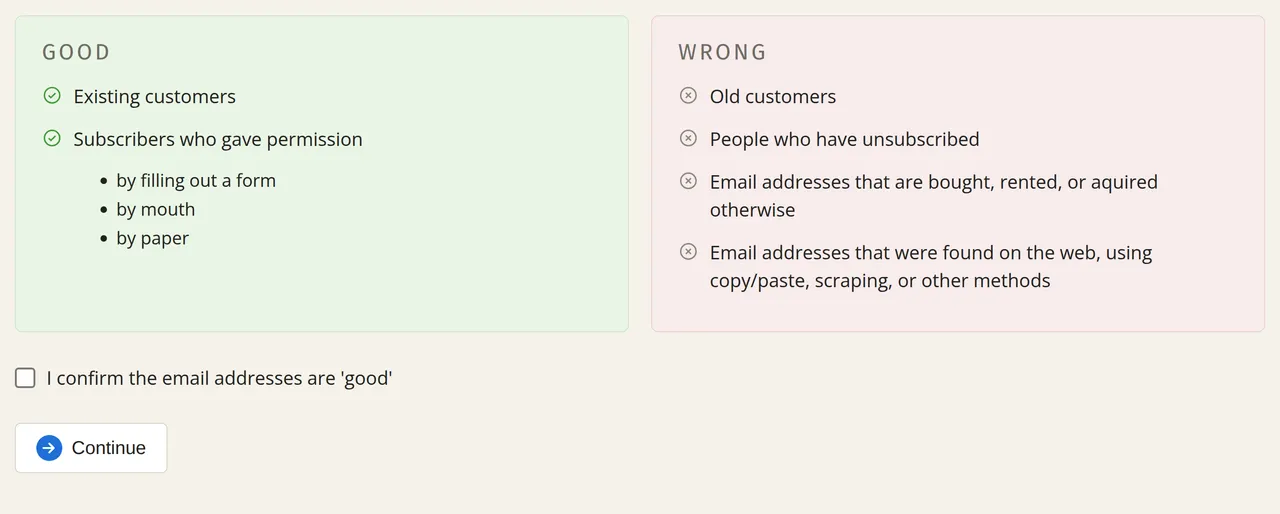
Importing a file
Select your file
Choose the file on your computer via ‘Select file’. You can read about which details you can include in Choosing subscriber data. If you want to see the best way to format the file, download a sample file as .xlsx or as .csv.
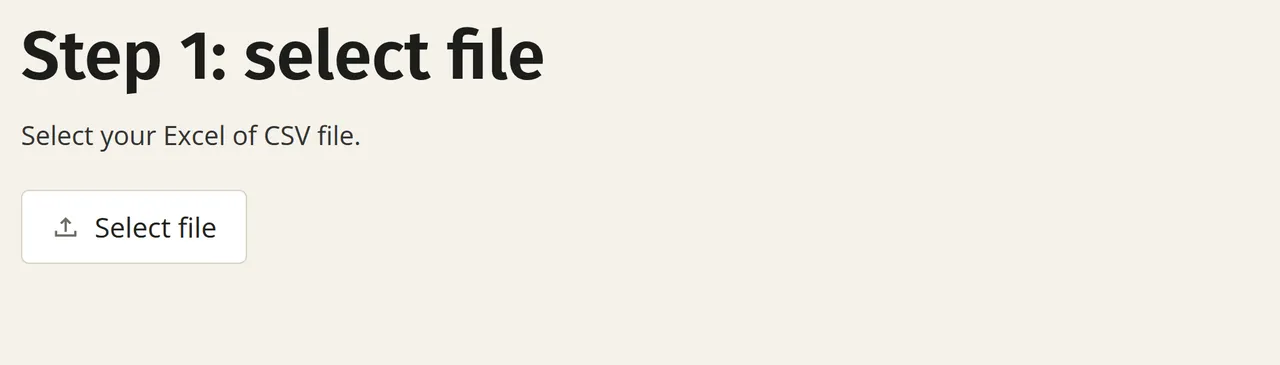
Choose what you want to do with the subscribers
Tick what should happen to the subscribers in your file. You can choose one or more options:
- ‘Add new subscribers’: subscribers that are in your file but not yet in your list will be added.
- ‘Modify existing subscribers’: data of subscribers that are already in your list will be overwritten or (if empty) completed with the data from your file.
- ‘Unsubscribe’: subscribers that are in your list but no longer in your file will be unsubscribed and moved to the ‘unsubscribed’ tab.
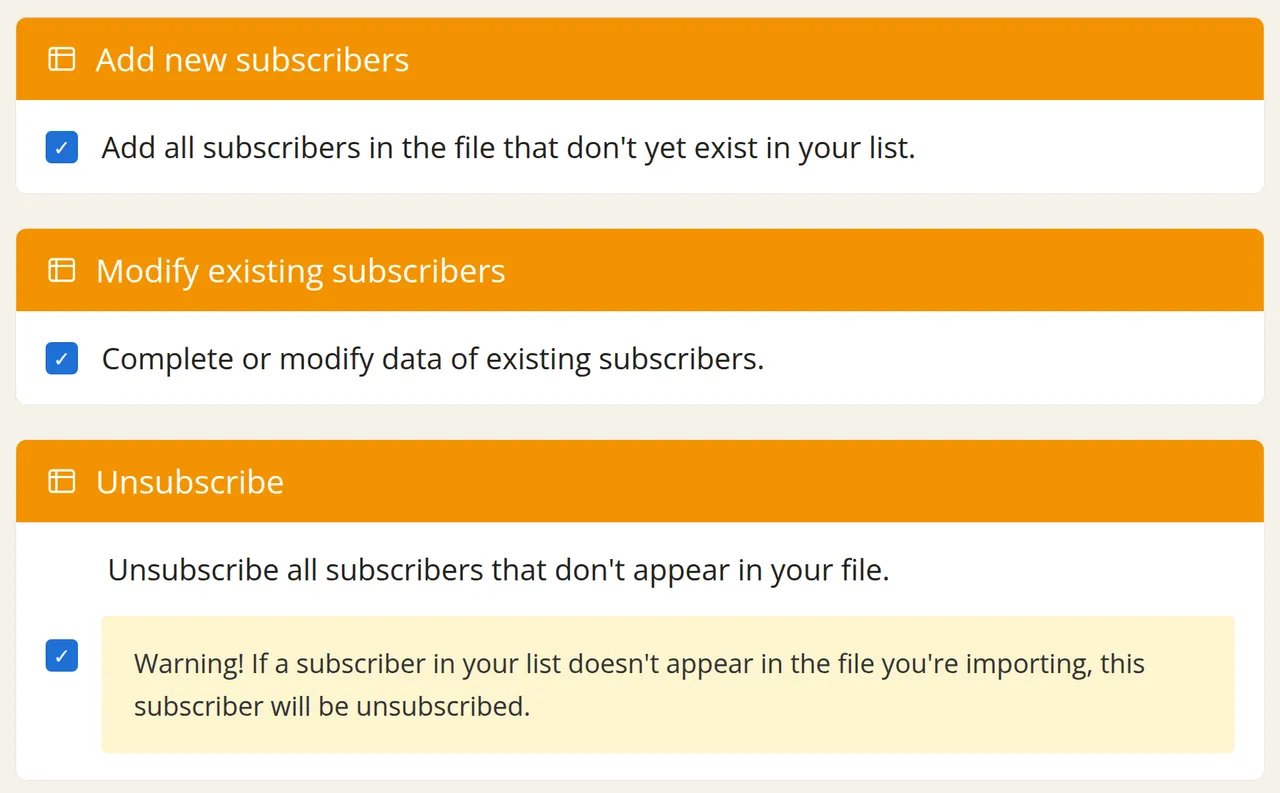
You do not have to limit yourself to your new subscribers: you can simply import all your subscribers. Subscribers that are already active are automatically deduplicated, so the same email address never appears twice in a single list. Laposta filters out addresses from your file that have previously unsubscribed or that have resulted in a hard bounce in the same list. This way, you do not run the risk of unsubscribed or bounced subscribers receiving a newsletter again.
Do not create a new list for every newsletter to import all your subscribers into it. This takes extra work and unnecessarily creates more active subscribers, which could place you in a higher pricing group. Moreover, you then run the risk of unsubscribed or bounced subscribers accidentally receiving a newsletter again. Always work with the same list(s).
Match the columns and start the import
For each column in your file, choose whether you want to import the data and which field in your list it should go into. Import all subscriber data that is relevant to your newsletters straight away: you can use this to personalise and segment later on.
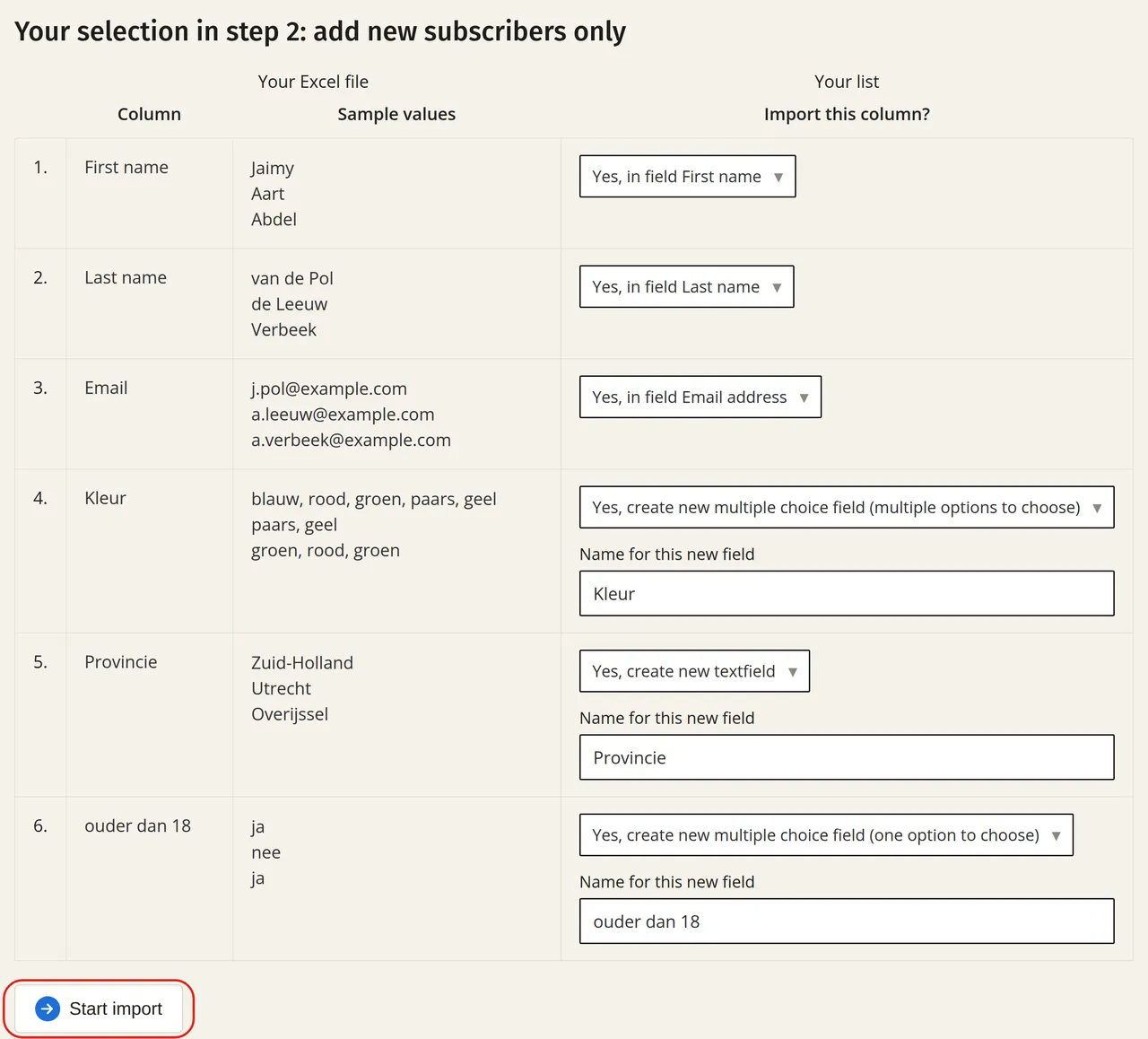
If you want to import multiple values into a single field (a multiple choice field where multiple selections are possible), separate the values in your file with a comma. For example, for the ‘Favourite holiday destination’ column:
john@johnscompany.co.uk:Greece, Italyrob@robscompany.co.uk:Sweden, Denmark, Greenland
If you want to assign labels straight away, link a column to ‘Labels’. If that column is called labels or tags, it will be linked automatically. Separate multiple labels in a single cell with a comma or a vertical bar. Labels that are not yet in your list will be created automatically.
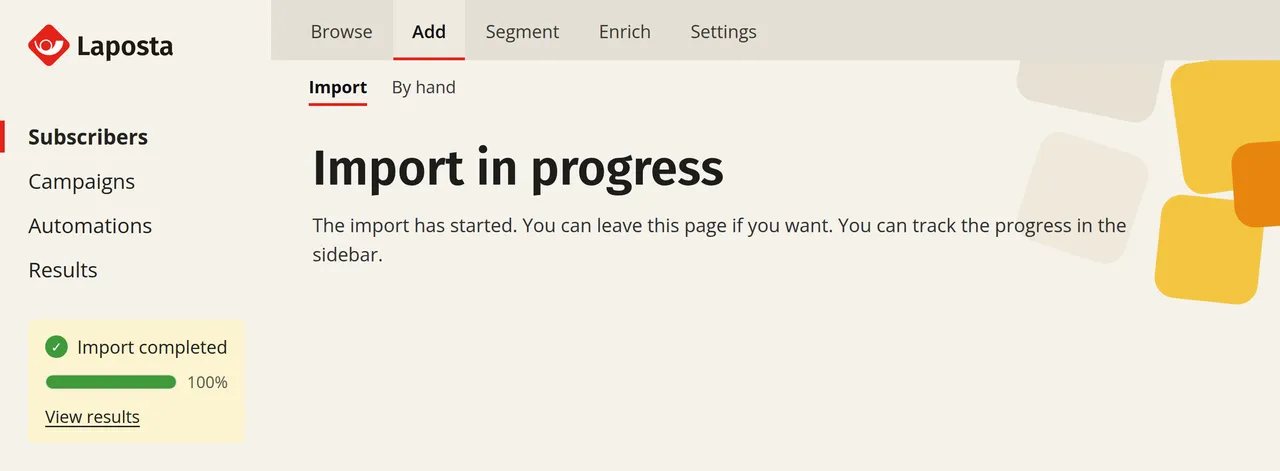
Click ‘Start import’. You will see the progress in the sidebar on the left while you can simply continue working in the programme. Importing a file of up to around 1000 subscribers takes just a few seconds. Larger files take a little longer.
View the results
Click ‘View results’ once you see in the sidebar that the import is finished. You will then see how many existing subscribers have been updated, how many new subscribers have been added to your list, and why certain rows were skipped.
The import is not working
If your file cannot be read, please check the following:
- Laposta only reads the first worksheet of an Excel file. Put the data you want to import on the first worksheet if your file has multiple worksheets.
- Formulas or cell references are not always recognised properly. Copy the worksheet you need and paste it into a new worksheet via Paste Special → ‘Values’. You can also save the file as
.csvvia ‘Save As’ → file typeCSV (Comma delimited) (*.csv).