

Skip to navigation

Creating a new list

Go to ‘Subscribers’ and click on ‘Create new list’ below the overview of your lists.
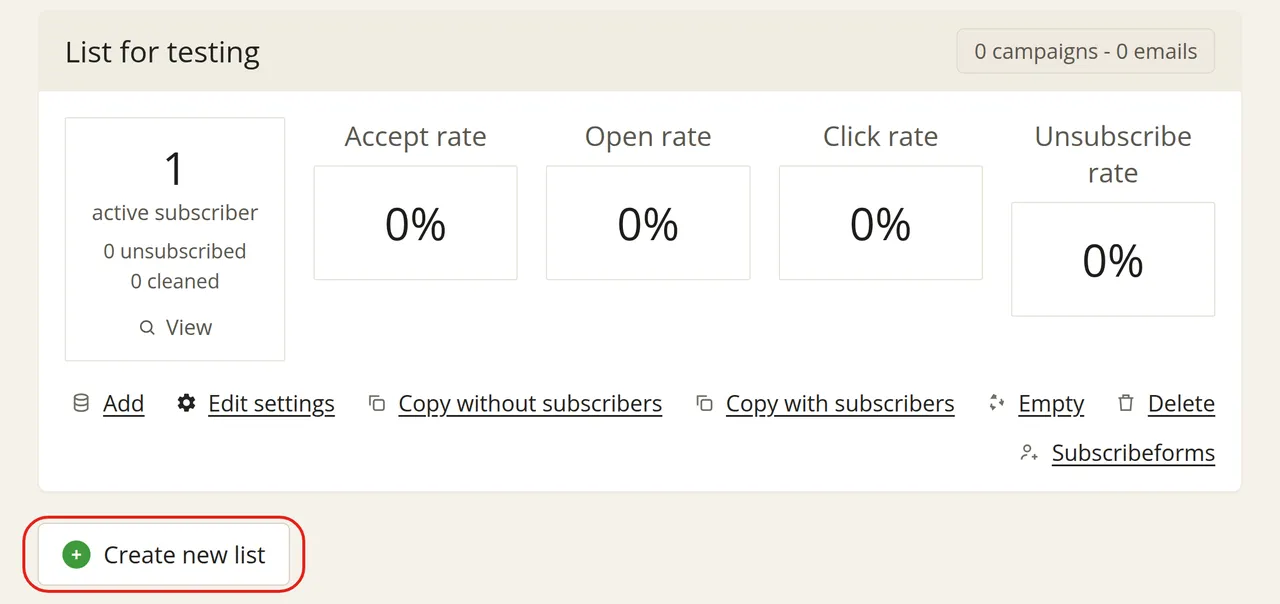
All lists with the Create new list button below the lists

Entering your list details

Fill in the settings for your list in the form. Only the name and the sender are required.
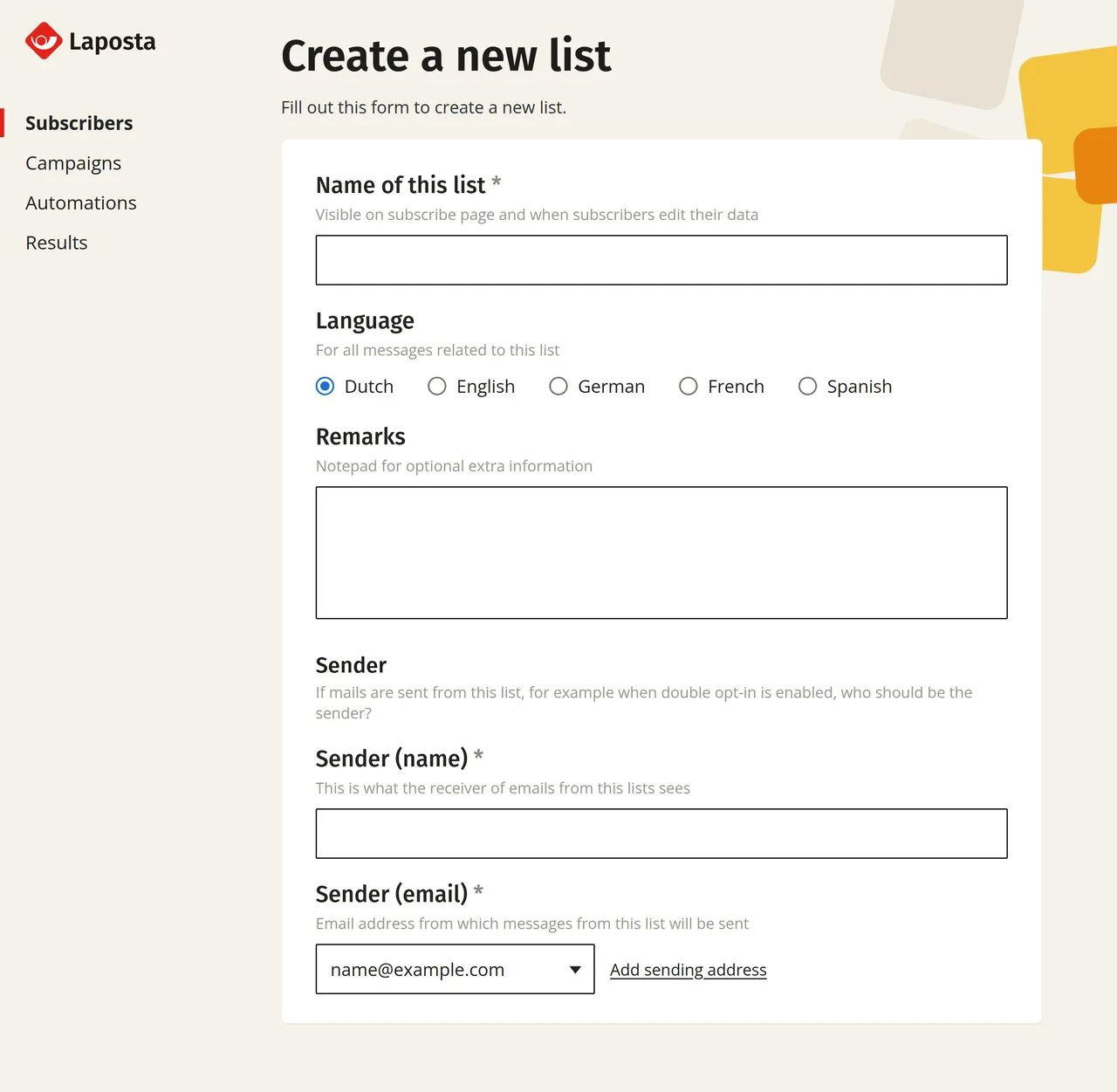
The Create a new list form with the fields Name of this list, Language, Remarks and the Sender section with Sender (name) and Sender (email)
SettingExplanation
Name of this listThe name of the list. Your subscribers will see this when subscribing and when editing their details.
LanguageThe language of messages for your subscribers, such as on the unsubscribe page. You can choose from Dutch, English, German, French and Spanish.
RemarksA notepad for yourself, not required.
Sender (name) and (email)The sender of system emails for this list, such as the confirmation email for double opt-in. Your subscribers will see this name as the sender and can reply to this email address.
Retention periodsUnder Retention periods, you can use ‘Delete unsubscribed subscribers after (days)’ and ‘Delete cleaned subscribers after (days)’ to set after how many days these subscribers are automatically deleted. If you leave a box empty, they will be retained. For unsubscribed subscribers, this prevents an unsubscribed address from being added back to your list during a subsequent import. If you still want to remove them, for example because of the GDPR, enter a number of days. For cleaned subscribers, the email address remains blocked for this list even after deletion. Read more about retention periods for automatically deleting subscribers.
Stay informedEnter an email address here if you want to be notified of subscriptions, unsubscribes or changes. You can set this per notification type.

Adding extra fields

Initially, a new list only contains the email address of your subscribers. If you want to store more details, such as a first name, you can create extra fields for this yourself.