

Using labels on subscribers
A label is a tag you come up with yourself and attach to a subscriber, such as ‘Customer’, ‘Quote’ or ‘Trade fair’. A single subscriber can have multiple labels, and each list has its own labels.
You can use them to filter in the subscriber overview, choose the recipients for a campaign, set a condition in a segment, and as a starting point or action in an automation.
Managing labels
Go to Subscribers, click on your list, and click on ‘Labels’ at the top. You will see all the labels for that list along with the number of active subscribers per label.
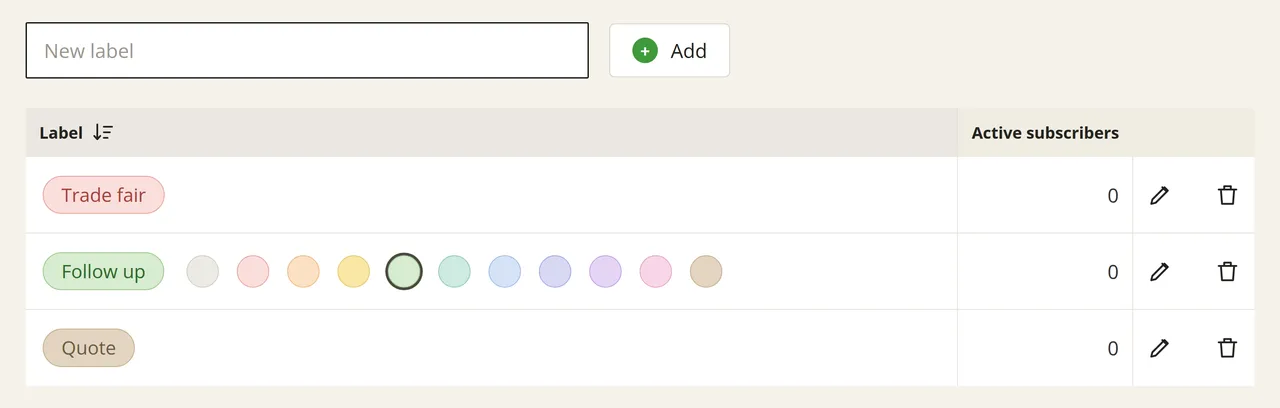
On this screen, you can manage the labels for the list:
- Create: type a name into the field and click on ‘Add’. You do not have to create labels in advance, by the way. They are also created automatically as soon as you enter a new name for a subscriber or include it during an import.
- Assign a colour: hover your mouse over a label and click on a colour in the strip that appears. The label will be shown in this colour everywhere it appears.
- Change name: double-click on the label or click on the pencil icon next to it, edit the name, and click on ‘Save’. Segments and campaigns that use the label will continue to work as normal.
- Merge: if you give a label the same name as an existing label, Laposta will suggest merging them. Once you confirm, all subscribers will receive the existing label, and segments and campaigns will be updated automatically. However, you will still need to manually update any automations that use the old label. The confirmation screen will show you which ones are affected.
- Delete: click on the rubbish bin icon. If the label is still being used somewhere, Laposta will warn you first and show you exactly where.
If you delete a label and then create a new one with the exact same name, the old label will be restored, including the subscribers and segments that used it. If you want to start completely fresh, choose a different name.
Adding labels to subscribers
A single subscriber
Multiple subscribers at once
During an import
Automatically
Open the subscriber’s details and select or type a label in the ‘Labels’ field. If you type a name that does not exist yet, you will immediately create a new label.
Filtering and exporting
Under Subscribers → Browse, the labels are displayed next to each subscriber. Click on a label to view only the subscribers with that label, or select a label from the list in the top right corner.
If you then export your list, Laposta will apply the active filter and you will only get the filtered subscribers. The export file contains a ‘Labels’ column with the labels for each subscriber.
Sending a campaign to subscribers with a label
When creating a campaign, you tick a list in step 2 (‘Select recipients’). If that list has labels, you can select one or more labels instead.
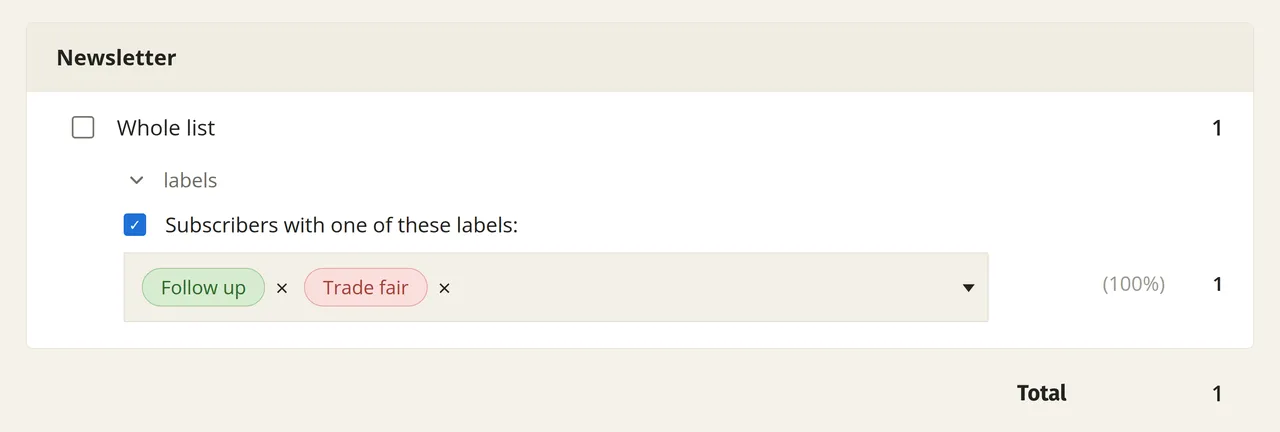
The campaign will then be sent to everyone with at least one of the selected labels. The number of recipients is shown immediately. If you also select segments or other lists, Laposta automatically removes duplicates so that nobody receives the campaign twice.
Using labels in a segment
If you want to combine a label with another condition, such as the label ‘Customer’ as well as the city London, create a segment. Select the ‘Labels’ field as the condition and choose one or more labels.
Using labels in an automation
With the Add label starting point, an automation starts as soon as a subscriber receives a label. With the Labels action, you can add or remove a label partway through the automation. In addition, you can use labels just like any other field in the If/then and Wait until… actions.
Retrieving and assigning labels via the API
You can also retrieve and assign labels via the API. As soon as a list has at least one label, they appear for the subscriber as a field named labels. When you request the fields of a list, all labels for that list are included as the possible values for that field.
When adding or updating a subscriber, you pass labels as an array:
The square brackets are required. If you leave them out, the label will not be saved, even though the API does not return an error message.
Via the API, you can only pass labels that already exist. If you pass a name that the list does not have, you will receive error code 203 with the message that the option is unknown. Therefore, always create new labels in your account or via an import first.