

Editing the edit form
The edit form allows your subscribers to update their own details. The form is hosted on a separate page, independent of your website. You link to it using the edit link. Once a subscriber has filled in the form, a thank-you page appears and Laposta automatically processes the new data in your list.
Where is the edit form?
Go to Subscribers → your list → Enrich → Edit. Under ‘Standalone edit form’, click ‘Start’, even if you are already using a form.
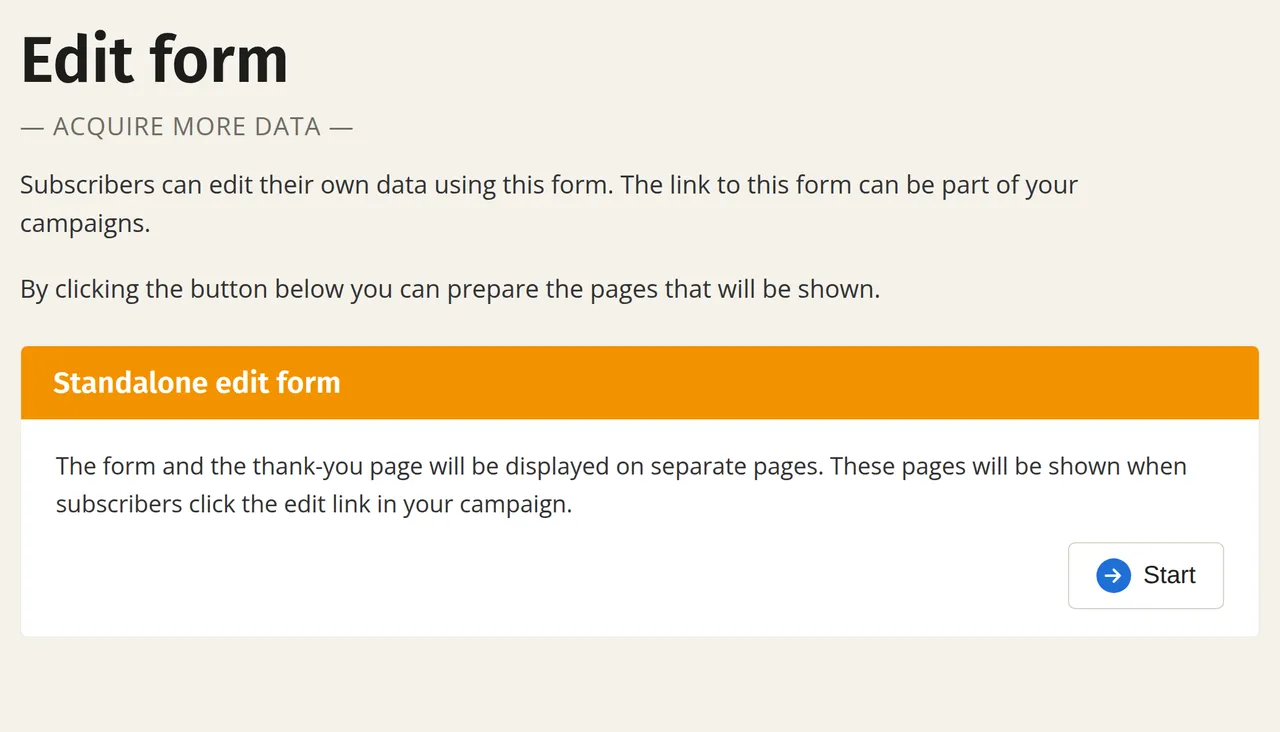
You will now see the steps. In step 1 you can edit the edit form, and in step 2 the thank-you page.
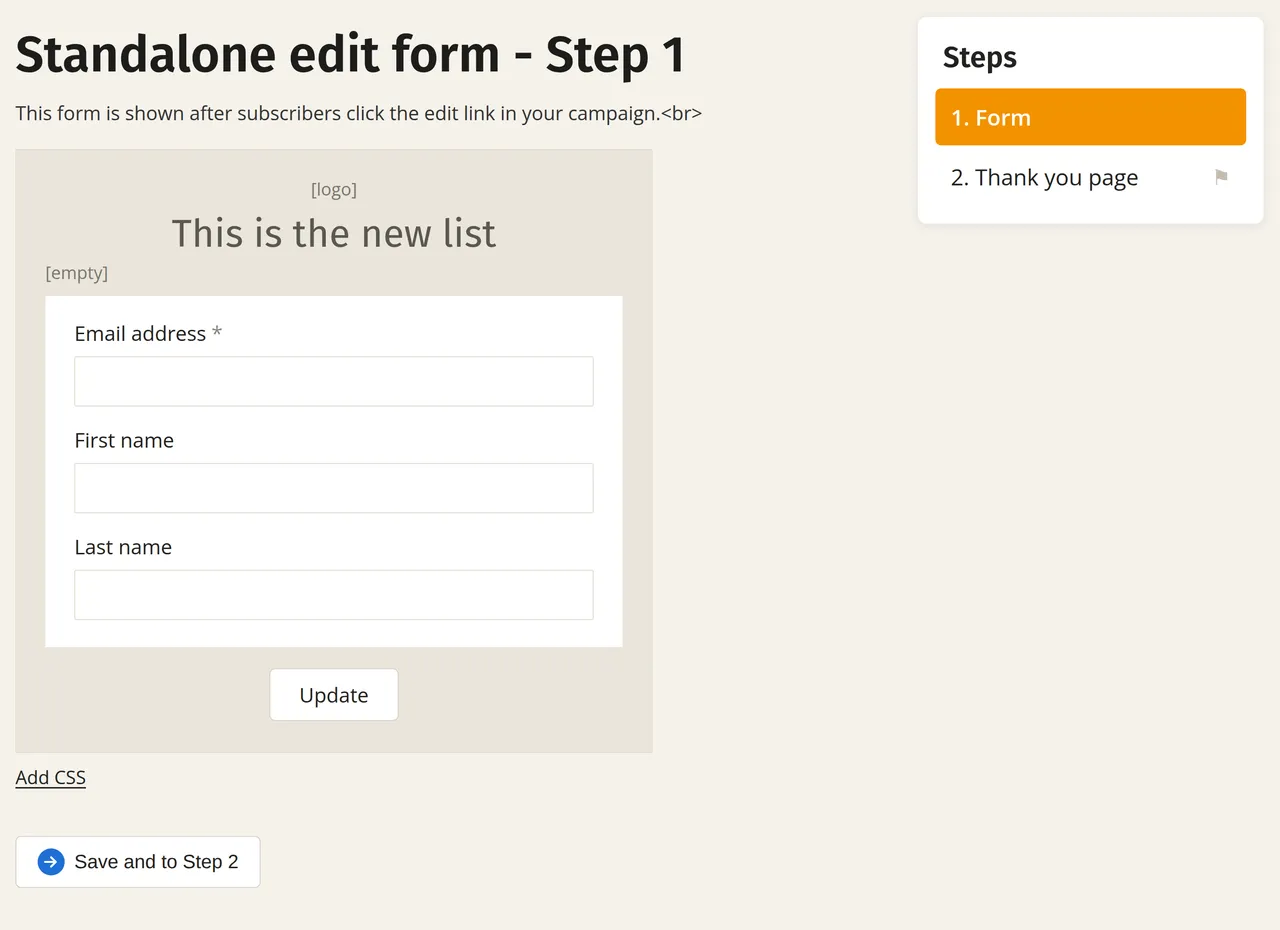
Editing the design
In step 1, click an element of the form to edit it.
If you have technical knowledge, you can also add your own CSS to the form.
Adding or hiding fields on the form
You manage the fields of your list under Subscribers → Settings → Fields. You can therefore create a new field there, and not in the edit form itself.
The edit form displays every field for which ‘In form?’ (for the subscribe form) is enabled. This setting is enabled as soon as you create a field. A new field therefore appears on the form straight away, even if it is not required. If your list only has the fields email address, first name and last name, you will see precisely those three fields on the form.
If you do not want to show a field to your subscribers, set ‘In form?’ on the ‘Fields’ page to ‘No’. The field will then disappear from both the subscribe form and the edit form. This is separate from whether the field is required.