

Creating a segment based on campaign results
You can segment your subscribers not only based on their details, but also on how they have interacted with your previous newsletters. For example, this allows you to reach only the subscribers who received your last campaign but did not open it, or everyone who clicked on a specific link.
Segmenting based on campaign results is only possible after you have sent your first campaign with Laposta.
Creating a segment based on campaign results
Open the Segment page
Go to ‘Subscribers’, select a list via ‘View’, and click on ‘Segment’. Create a new segment there, or click on ‘Edit’ next to an existing segment.
Choose campaign results as the basis
Click on ‘Segment based on campaign results’. If you want to select based on the details of your subscribers themselves, choose subscriber data.
Which criteria can you choose?
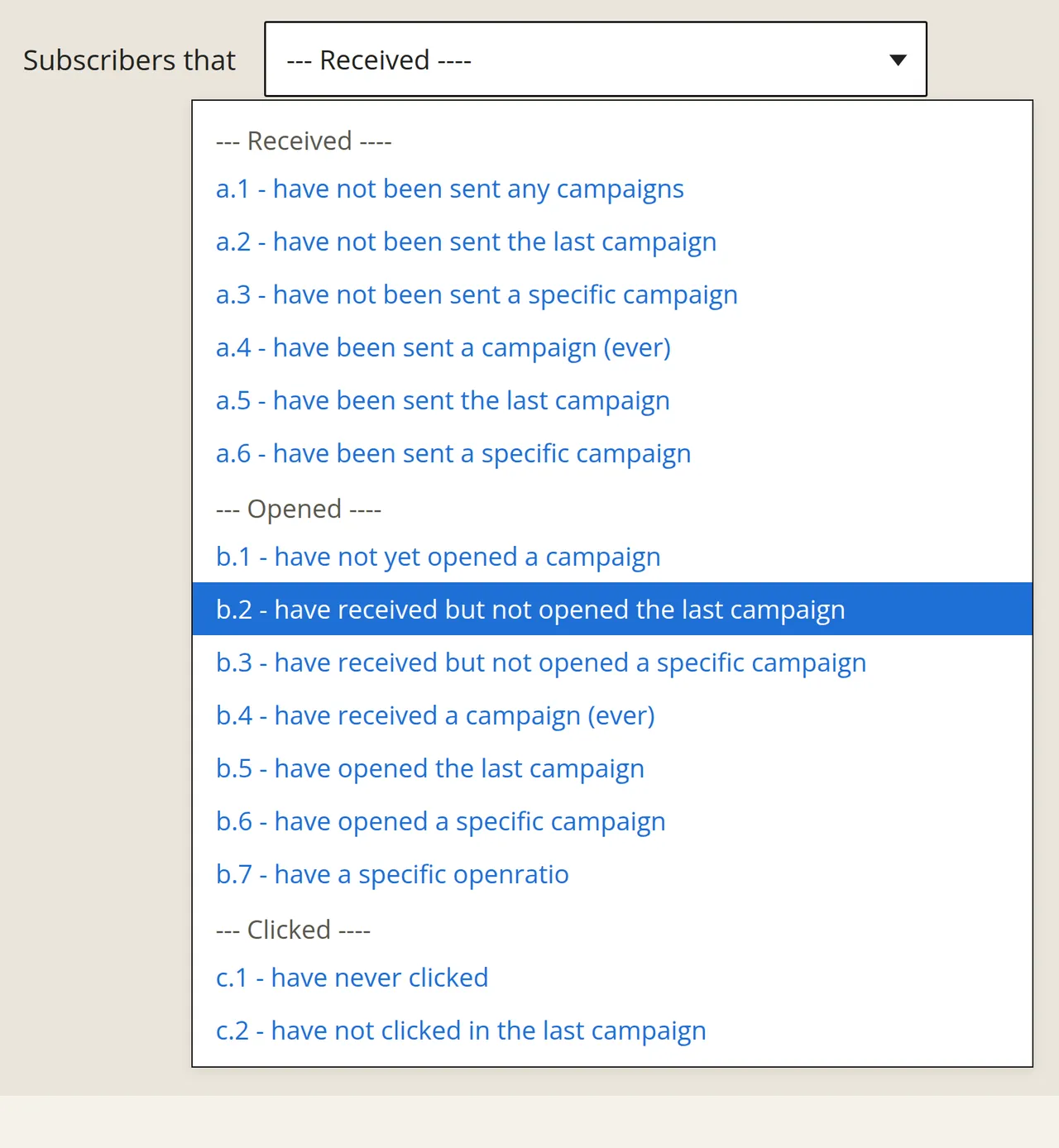
The more than twenty criteria are divided into three categories: received (a), opened (b), and clicked (c). Each criterion selects the subscribers who meet that single condition.
Received
Opened
Criteria b.1 to b.6 are about opening a campaign, and b.7 is about the openratio.
Clicked
Criteria c.4 and c.8 are about one specific link, c.9 is about the clickratio, and the rest are about clicking in a campaign.
Examples
Selecting clickers on a specific link (c.8)
If you choose criterion c.8, you can then select the relevant campaign and link.
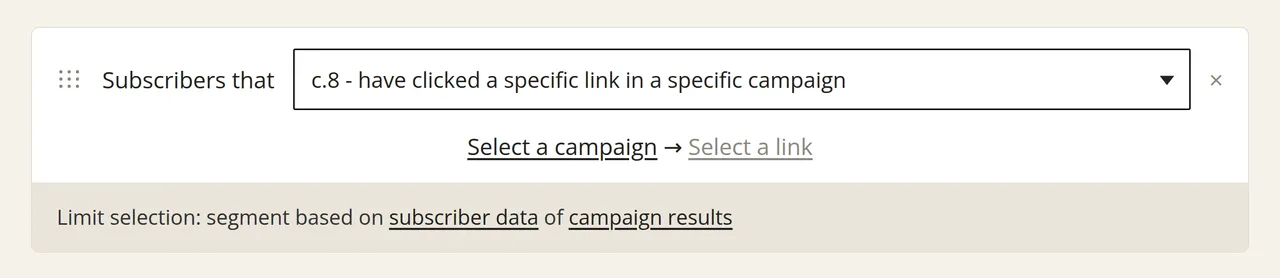
At the top right of the page, you can immediately see how many subscribers are in this segment.
Selecting non-openers of your last campaign (b.2)
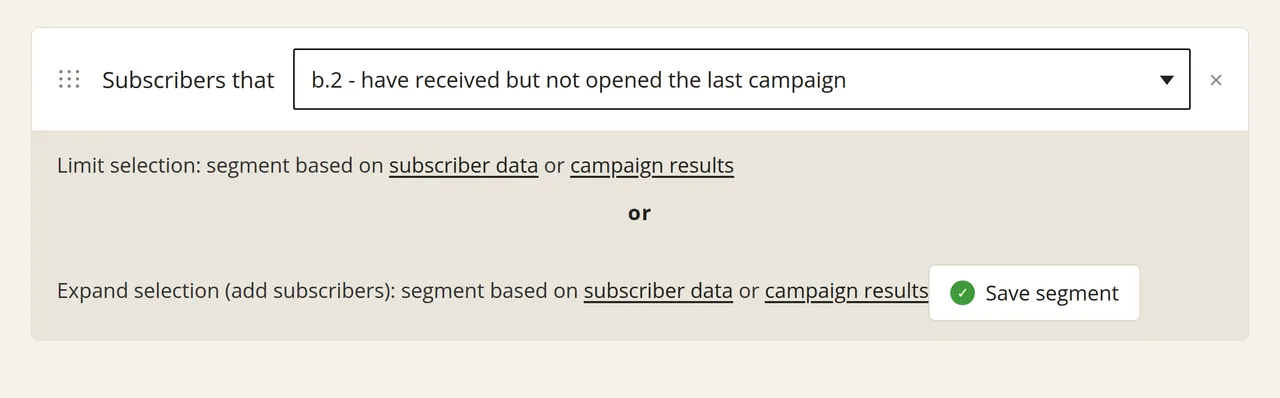
With criterion b.2, you select the subscribers who received your last campaign, but did not open it. You can resend your newsletter to that group, so they still get a chance to read it.
Next to ‘Subscribers that’, choose option b.2.
The selection rule is now ready. Click on ‘Save segment’.
Via Subscribers → View (or tab ‘Browse’ within the list), you can see which subscribers are in which segment. When creating a campaign, you can specify in step 2 which lists and segments you want to send the newsletter to.