

Testing the edit link in your newsletter
If you include a link to the edit form in the content or footer of your campaign, you will want to see beforehand what your subscribers will see and be able to fill in.
This does not work from the preview or with a testmail. However, you can test the link by creating a new segment containing only your own email address, and sending the final campaign to that segment.
Add your own address to the list
Add the email address you want to test with to your list, if it is not already in there. In this example, helpdesk@laposta.nl has been added to the ‘All subscribers’ list.
Create a segment with only that address
Create a new segment based on subscriber data with two conditions: the field ‘Emailaddress (part before @)’ is equal to ‘helpdesk’ and the field ‘domain (part after @)’ is equal to ‘laposta.nl’. Check the counter in the top right to make sure that exactly one subscriber falls into the segment. Save the segment under a recognisable name, so you can easily find it when selecting the recipients.
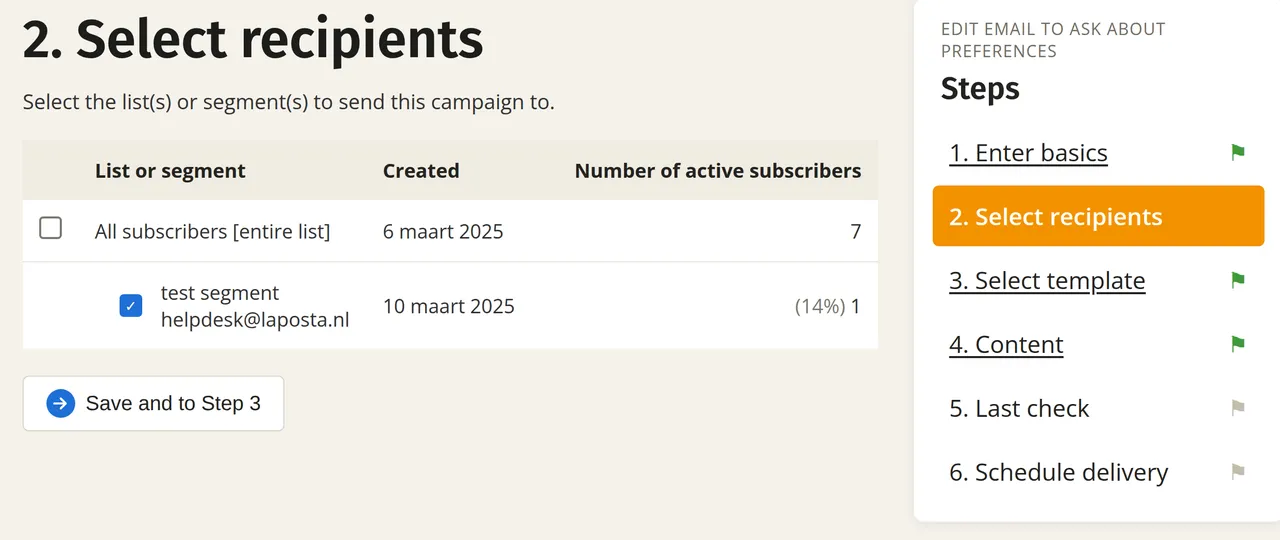
Select only the test segment in step 2 of your campaign
In step 2 under ‘Select recipients’, tick the test segment and untick the entire list. This way, you can be sure that you are only sending the campaign to yourself. Then send the campaign as usual and click the edit link in the email you receive.
Copy the campaign and send it to your list
Is everything correct? Then copy the campaign, adjust it if necessary and send it to your entire list.