Creating a segment based on subscriber data
With a segment, you select a part of your list that meets the selection rules you specify yourself. For example, you can send a newsletter only to subscribers from the province of Gelderland, to everyone with a Gmail address, or to the women in your list who were born after 1 January 1990.
You can only segment based on data that you have entered in your list. You can only create a Gelderland segment once you have recorded the province for each subscriber, and a Hockey segment only if you have entered a sport or hobby for your subscribers.
Creating a new segment
Open the Segment page
Go to ‘Subscribers’, choose a list via ‘View’, and click on ‘Segment’. On this page, you can create new segments and edit or delete existing segments.
Start a new segment
Click on ‘Create new segment’ to open the ‘Create new segment’ screen. If you want to adjust an existing segment, click on ‘Edit’ next to that segment.
Choose what to select on
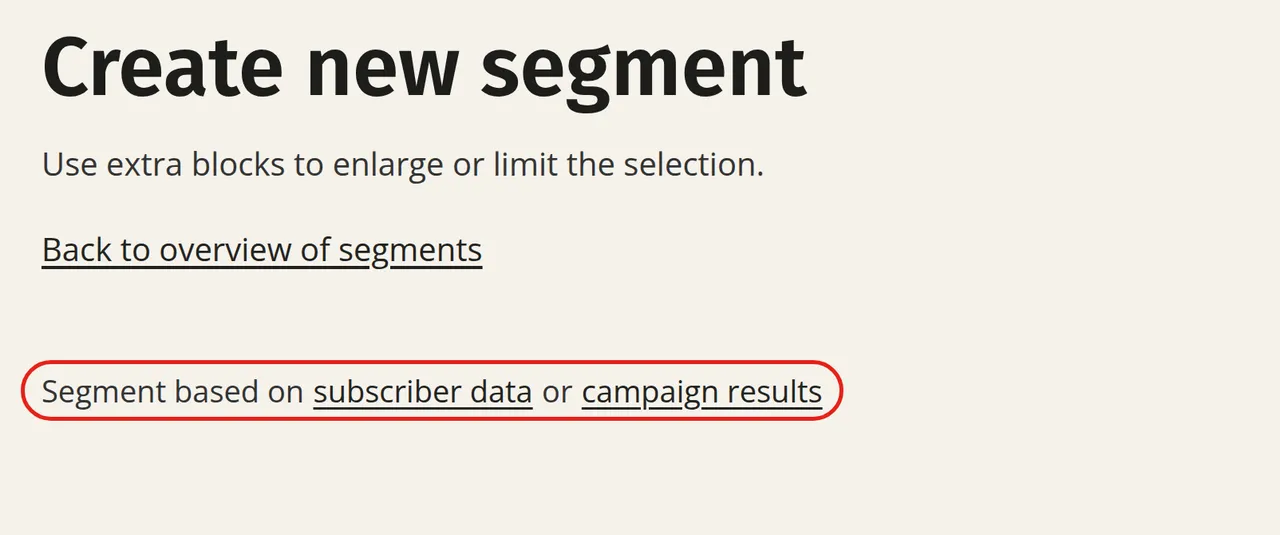
Click on ‘Segment based on subscriber data’. If you want to select based on what your subscribers have done with previous newsletters, choose campaign results.
Set the selection rule
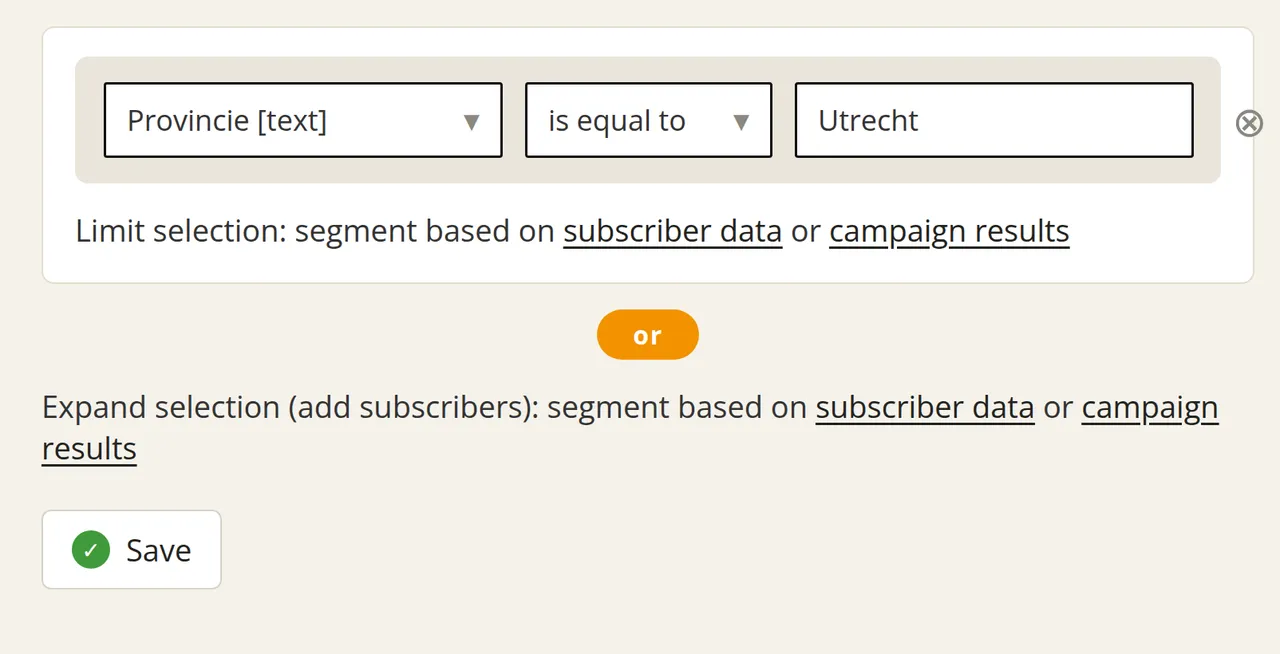
Choose the field in the first column, the comparison in the second column, and the value in the third column. You can choose from all the data of the subscribers in this list: from email address and sign-up date to data you entered yourself, such as first and last name, city, gender, date of birth, industry, customer number, and hobby. If the list has labels, you can select them via the ‘Labels’ field, for example to combine the Customer label with a city. In the top right of the page, you can immediately see how many subscribers are in this segment.
Save the segment
Give the segment a name and click on ‘Save’. Via Subscribers → View, you can then see which subscribers are in the segment. When creating a campaign, you can select your segment in step 2.
If you change a field name or an answer option of a multiple-choice field, the segments that use that field will also change. Therefore, always check your segments carefully after making such a change.
Combining multiple selection rules
You can use multiple selection rules within a selection block (a single coloured box), and add multiple blocks to a segment. The rule type can differ per rule, allowing you to combine subscriber data and campaign results in a single segment.
Example: over-18s from Gelderland
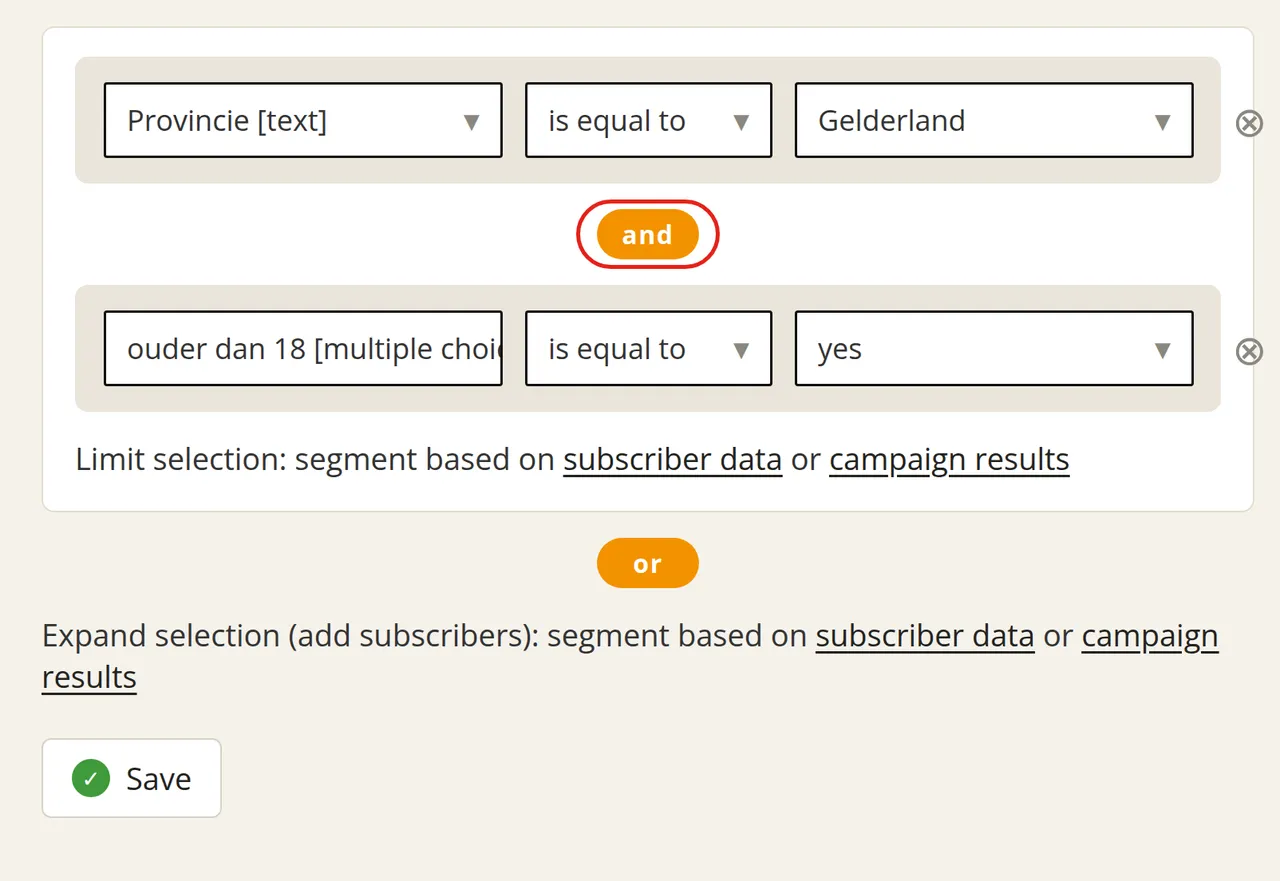
If you only want to send a newsletter to over-18s from Gelderland, first create a selection rule based on subscriber data: choose the ‘Provincie’ field in the first column, ‘is equal to’ in the second column, and ‘Gelderland’ in the third column. Add a second rule within the same selection block to limit the selection further: choose the ‘Ouder dan 18’ field, ‘is equal to’, and ‘yes’. Then save the segment.
Combining subscriber data and campaign results
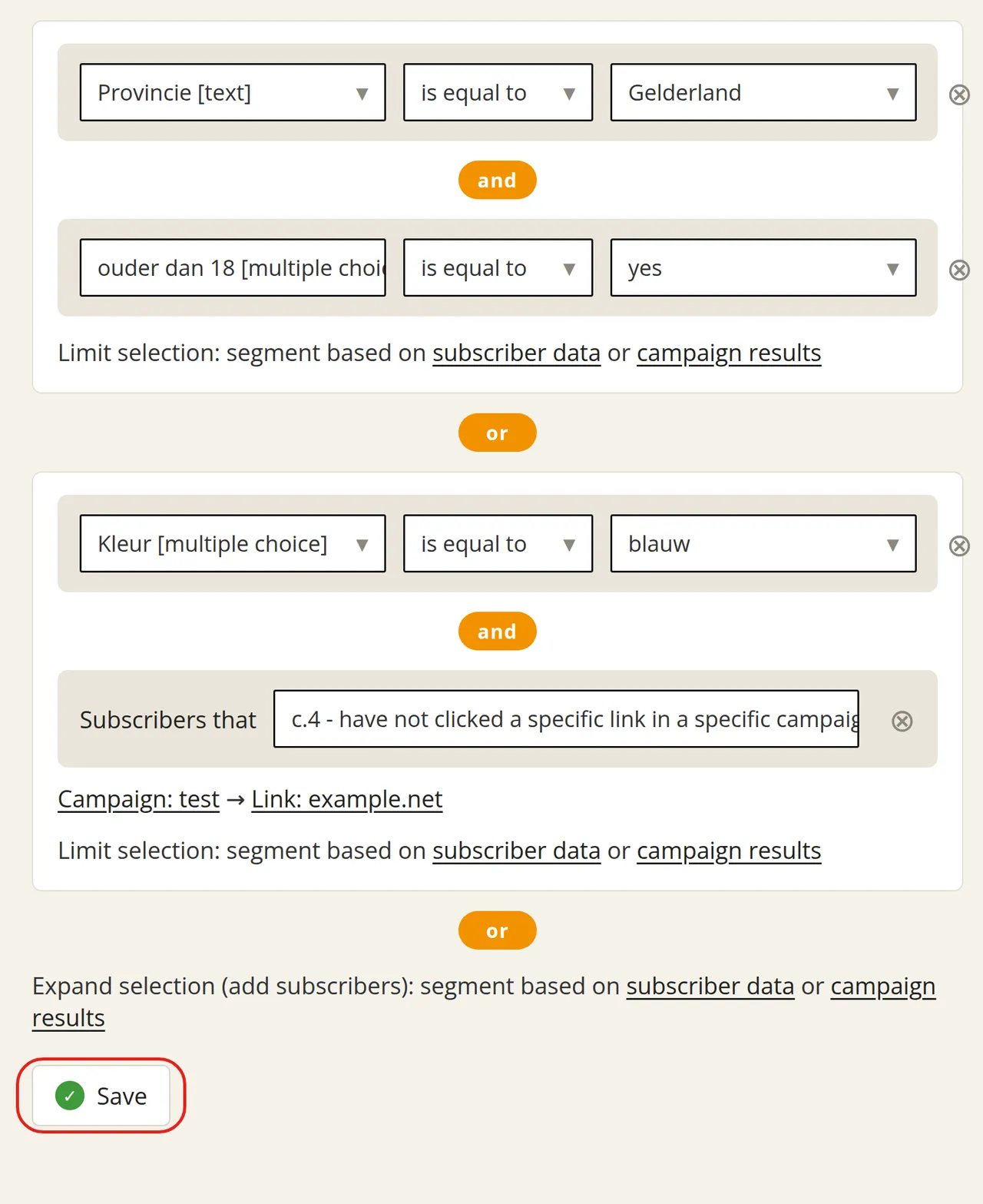
If you also want to add everyone to the segment above who has entered ‘blue’ as their colour and has not clicked a specific link in a specific campaign, expand the segment with a second block under ‘or’.
In that second block, first create a selection rule of the subscriber data type: the ‘Kleur’ field, ‘is equal to’, ‘blauw’. Within the same block, add a second selection rule of the campaign results type. From the drop-down menu, choose the criterion ‘Subscribers that have not clicked a specific link in a specific campaign’ and select the appropriate campaign and link.
With this segment, you can send a newsletter to two groups at the same time: all over-18s from Gelderland, and everyone with a preference for blue who has not clicked that link in that specific campaign.