

Switching from Mailchimp to Laposta
If you are switching from Mailchimp to Laposta, you can transfer your subscriber files by exporting them and importing them into Laposta. You cannot import your templates and automations, so you will need to recreate them in Laposta. However, you can have your sent newsletters exported separately.
Transferring subscriber files
What is called a list in Laposta is called an audience in Mailchimp. In a free Mailchimp account, you may only use one audience. In Laposta, you can create as many lists as you like.
Export your audience from Mailchimp
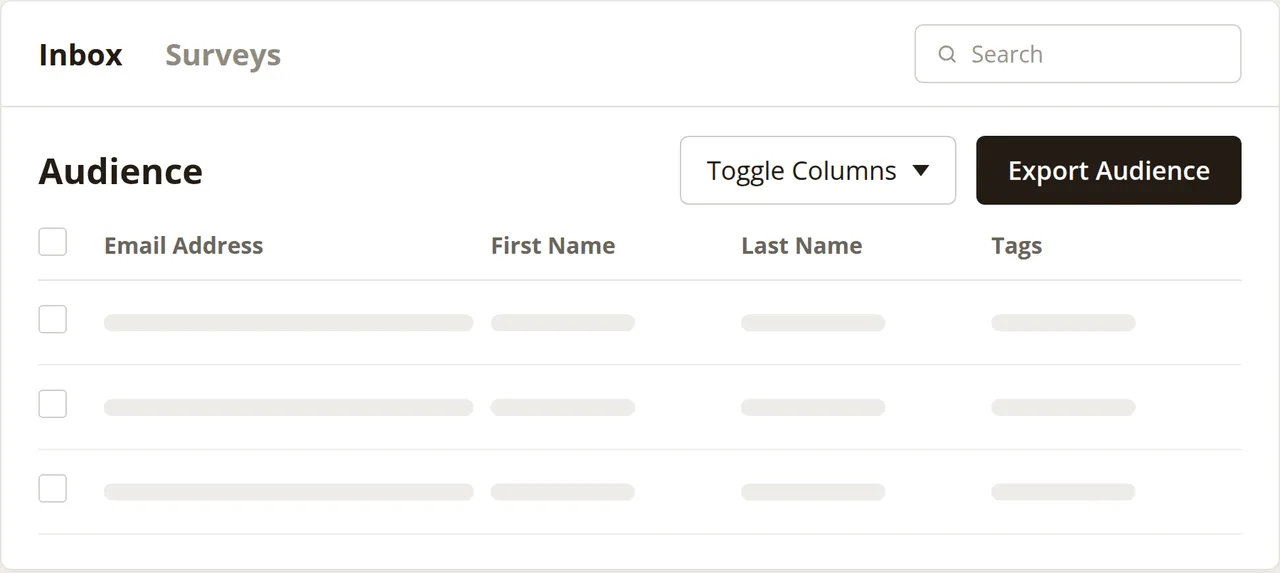
On the Mailchimp start screen, click on ‘View Audiences’ and choose the audience you want to transfer. Click on ‘Export Audience’ and then on ‘Export As CSV’.
Create a list in Laposta
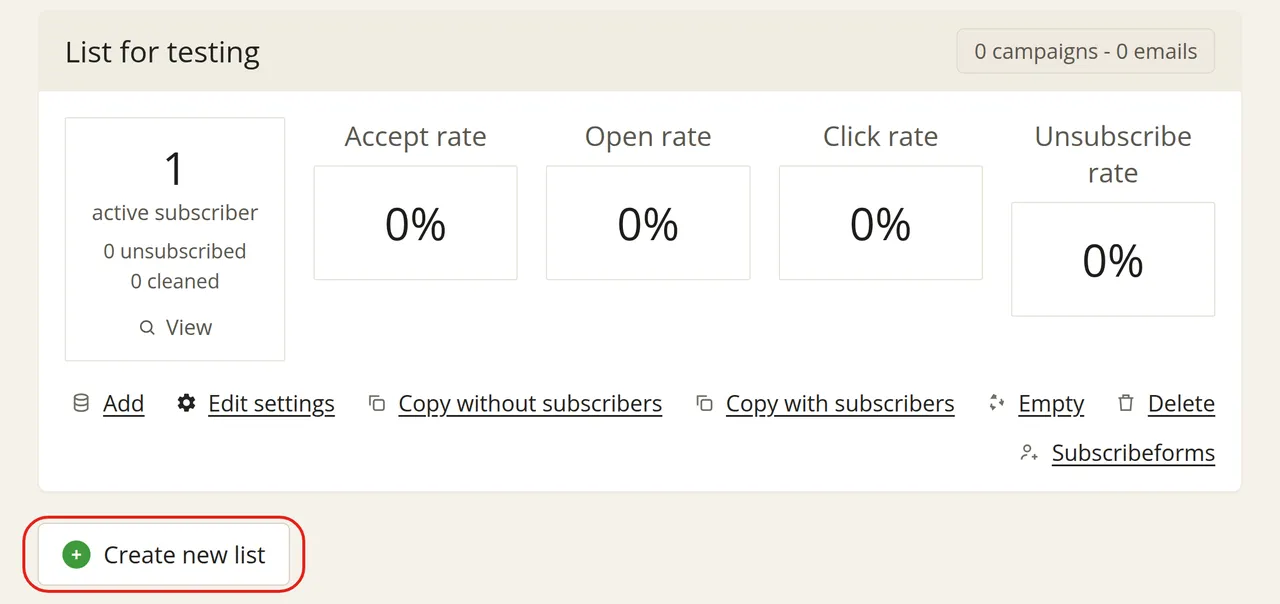
In Laposta, go to Subscribers, click on ‘Create new list’ and fill in the details for the list in which you want to place the export.
Open the import screen
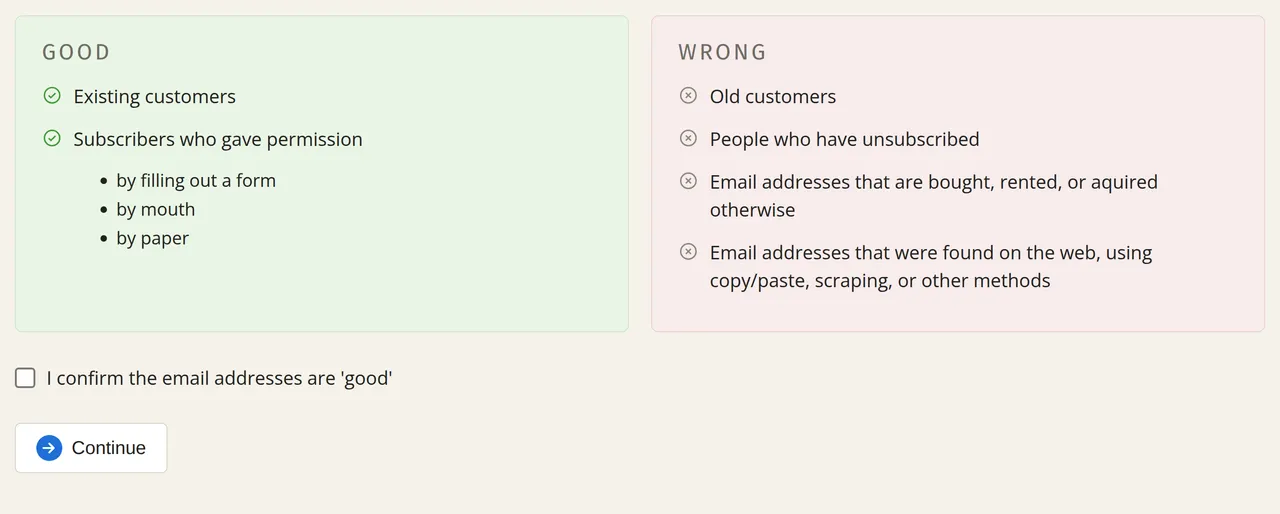
Go to the ‘Add’ tab. Confirm that all your new subscribers fall into the ‘Good’ category and click on ‘Continue’ (to proceed with importing the file).
Select your file and map the data
Select the unzipped file (ending in .csv). Choose ‘Add new subscribers’ and click on ‘To Step 3’ at the bottom. Laposta will show a preview of the data from the export. For each item of data, choose whether you want to import it and complete the remaining steps to finish the import.
You can find a detailed explanation in Importing a large subscriber file.
Transferring tags
In Laposta, tags are called ‘labels’. You can import them directly along with your subscriber file. When importing, map the column containing your tags to ‘Labels’. If this column is called tags in the Mailchimp export, the mapping is already set up for you. Separate multiple tags in a single cell with a comma or a vertical bar. Tags that do not yet exist as a label in Laposta are created automatically. You can read about what you can do with labels afterwards under Labels on subscribers.
Recreating templates
Mailchimp and Laposta both have a drag & drop editor, but you cannot import a template from Mailchimp. You will therefore need to recreate your newsletter. If you need help with this, take a look at Creating a good newsletter in the drag & drop editor.
Recreating automations
You cannot transfer an automation from Mailchimp, so you will need to recreate it in Laposta. Even with a free account, you can use all the available features for this.
Keeping sent newsletters
If you stop using Mailchimp, all newsletters in that account will be lost. With a Mailchimp API key, Laposta can create an export of them. You will then receive a zip file containing all campaigns in HTML along with the corresponding images. This costs 100 euros excluding VAT.