

Starting another automation from your automation
With the ‘Start automation’ action, you can start another automation from within an automation. As soon as a subscriber reaches this action, the other automation you have chosen will start for this subscriber.
Automations with many if/then blocks and repeating sections quickly become large and complicated. Instead of adding all sorts of new steps under ‘Yes’ or ‘No’ of an if/then block, you can start another automation there. This allows you to divide one large automation into smaller, separate automations and keep things clear.
Starting another automation
To start another automation, you need to edit both automations:
- Give the automation you want to start the ‘From another automation’ start moment. For this, see Another automation as starting moment.
- In the first automation, drag the ‘Start automation’ action to the place from where you want to start the other automation and click on it.
- Under ‘Automation’, select which automation you want to start from the dropdown list.
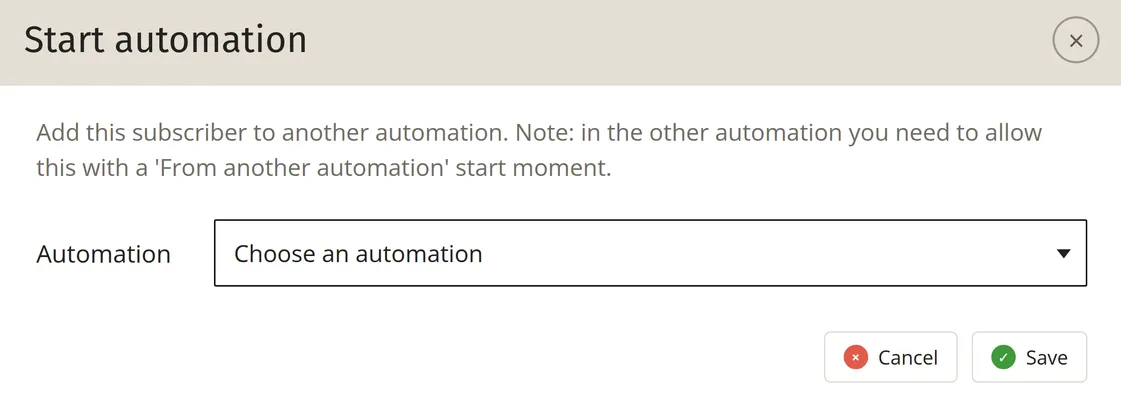
Is the automation you are looking for not in the dropdown list? Then that automation does not have the ‘From another automation’ start moment yet. Add that start moment first, and then you will be able to select the automation here.
Linking automations via a status field
You can also start a next automation by changing a field. To do this, create a multiple-choice field called ‘status’ in your list, containing the phases a subscriber can be in. Have the first automation update the status at the desired moment, for example from ‘phase 1’ to ‘phase 2a’. You then give the next automation the ‘Edit’ start moment, with ‘phase 2a’ as the value.