

Sending a subscriber to another list based on a condition
An if/then split sends each subscriber in one of two directions. If you place the ‘Subscribe’ action under ‘Yes’, only the subscribers who meet your condition will end up in a second list.
This example uses people who sign up for an e-book. Only those who indicated in the ‘Newsletter’ multiple-choice field that they want to receive your newsletter will be subscribed to the ‘Newsletter’ list.
What you need in advance
You are building on an existing automation. To do this, you first need two things:
- an automation that sends the freebie after a subscription to the ‘E-book sign-ups’ list
- an extra checkbox in your subscribe form, allowing people who sign up to indicate whether they also want to receive your newsletter
Once you have finished your email in that automation, click ‘Confirm and back to automation’. You then place the actions below under the ‘Send email’ block.
Setting up the split and second list
Drag the If/then action to the bottom plus icon
Next, click the placed block to split your automation and choose the condition for the next step. You can split based on the value of a field, an action, or a date or time. In this example, choose ‘the value of a field’.
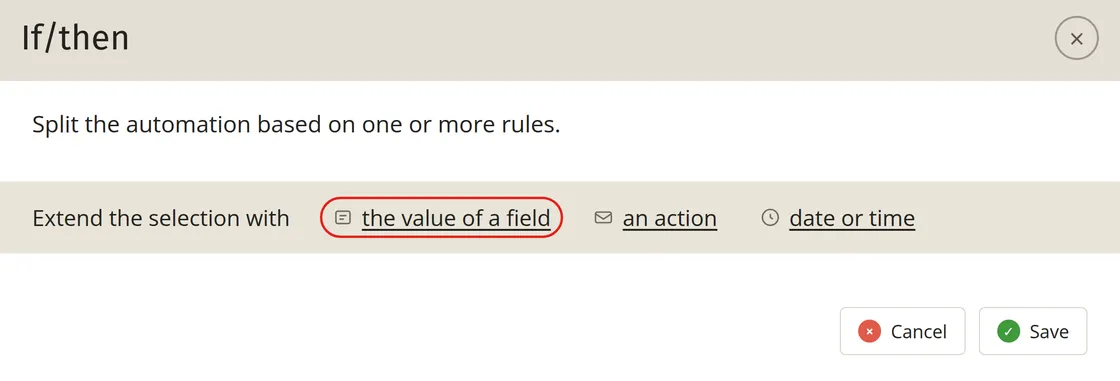
Set the condition
First choose the list containing the subscribers who must meet the condition (‘E-book sign-ups’), then the field (‘Newsletter’), the comparison (‘is equal to’), and the value (‘Yes, please!’). Click ‘Save’ to return to the overview of your automation.
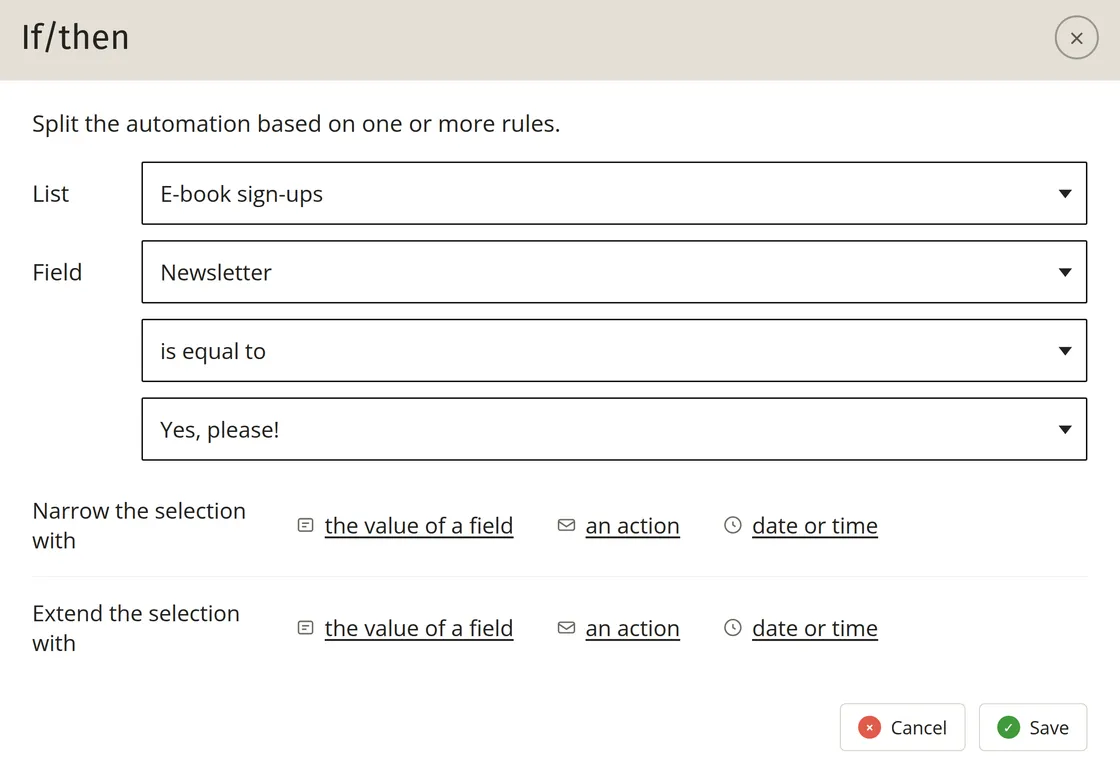
Splitting based on an action or a date or time works the same way, and you can combine multiple conditions below one another. You can read what you can set for each type of condition under If/then for a split.
Drag the Subscribe action under Yes
Below the if/then block, there is now a green ‘Yes’ and a red ‘No’. Drag ‘Subscribe’ to the plus icon under ‘Yes’. Click the block and select the list to which these subscribers should be added, in this example ‘Newsletter’. To find out which fields are also copied to that list, read Subscribe to another list.
Activate the automation
The split will only start running once you turn on the automation in the overview. You can read how this works under Activating or pausing an automation.
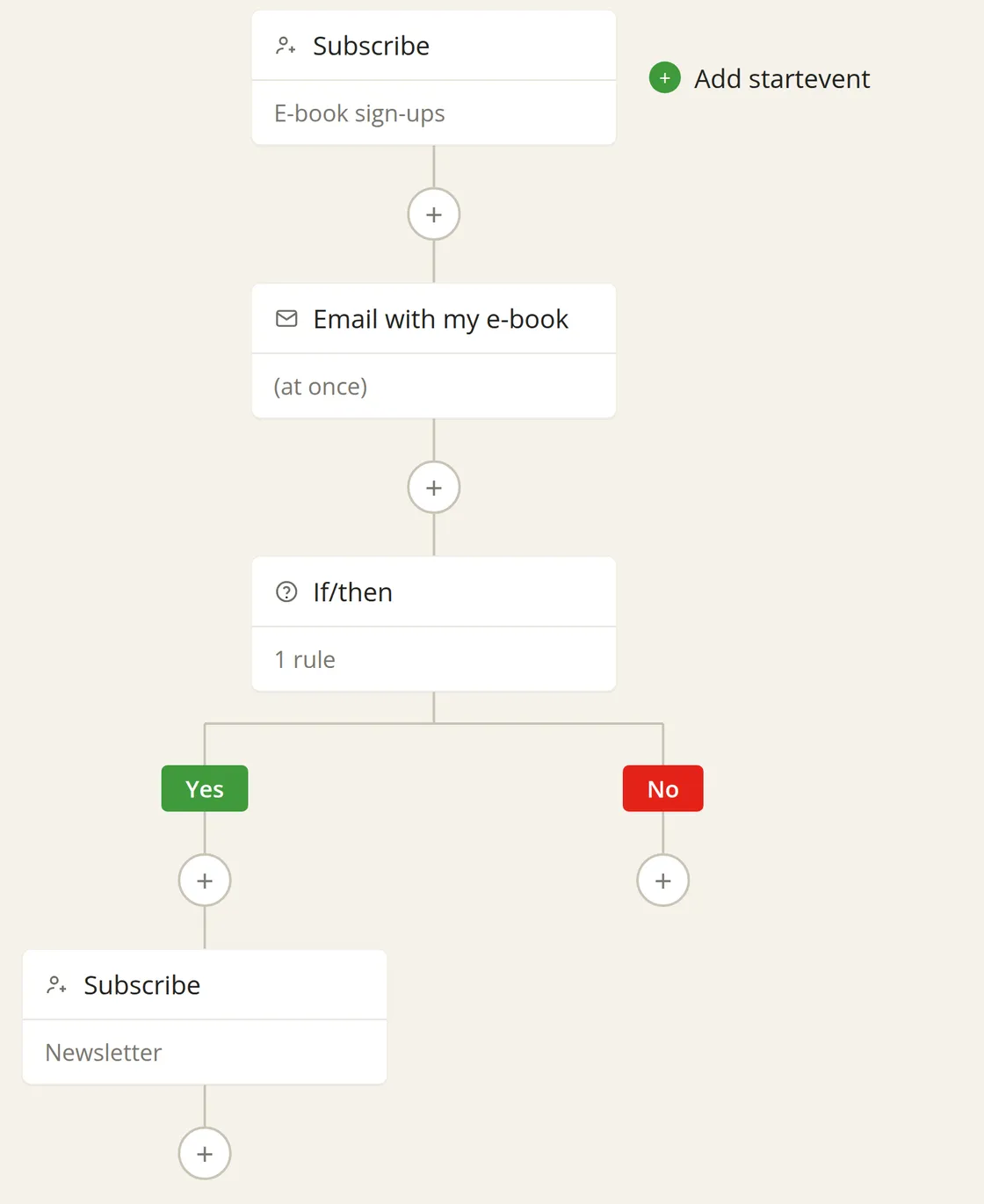
Expanding the automation further
At the bottom of the ‘Yes’ and ‘No’ branches, you can add extra blocks:
With that last combination, the automation waits a while after sending your freebie. After that, you can automatically send an email asking for feedback and bringing your newsletter to their attention again.