

Automatically resending your last campaign to new subscribers
With an automation, you can set up your account so that anyone who newly subscribes to your newsletter automatically receives your last campaign. To do this, place the start event ‘Subscribe’ and the action Send email one after the other, containing your last campaign as a template.
If you prefer to decide each time when to resend, you can also do this manually from the campaign overview. If you want to send the same newsletter again to subscribers who did not open it, you can work with a segment based on campaign results.
Setting up an automation for resending
If you are working in the editor for the first time, start with Start your first automation.
Save your campaign as a template
In your campaign, go to step 4 (‘Content’) and click ‘Save as template’ at the top. If the campaign has already been sent, first make a copy of it and save the template from step 4 of that copy. You can read more about this in Saving and copying a customised template.
Create a new automation
In the main menu on the left, select ‘Automations’ and click ‘New automation’. Give the automation a recognisable name, for example ‘Resend newsletter January’, and click ‘Save’.
Choose Subscribe as the start event
Click ‘Add startevent’ and select the event ‘Subscribe’.
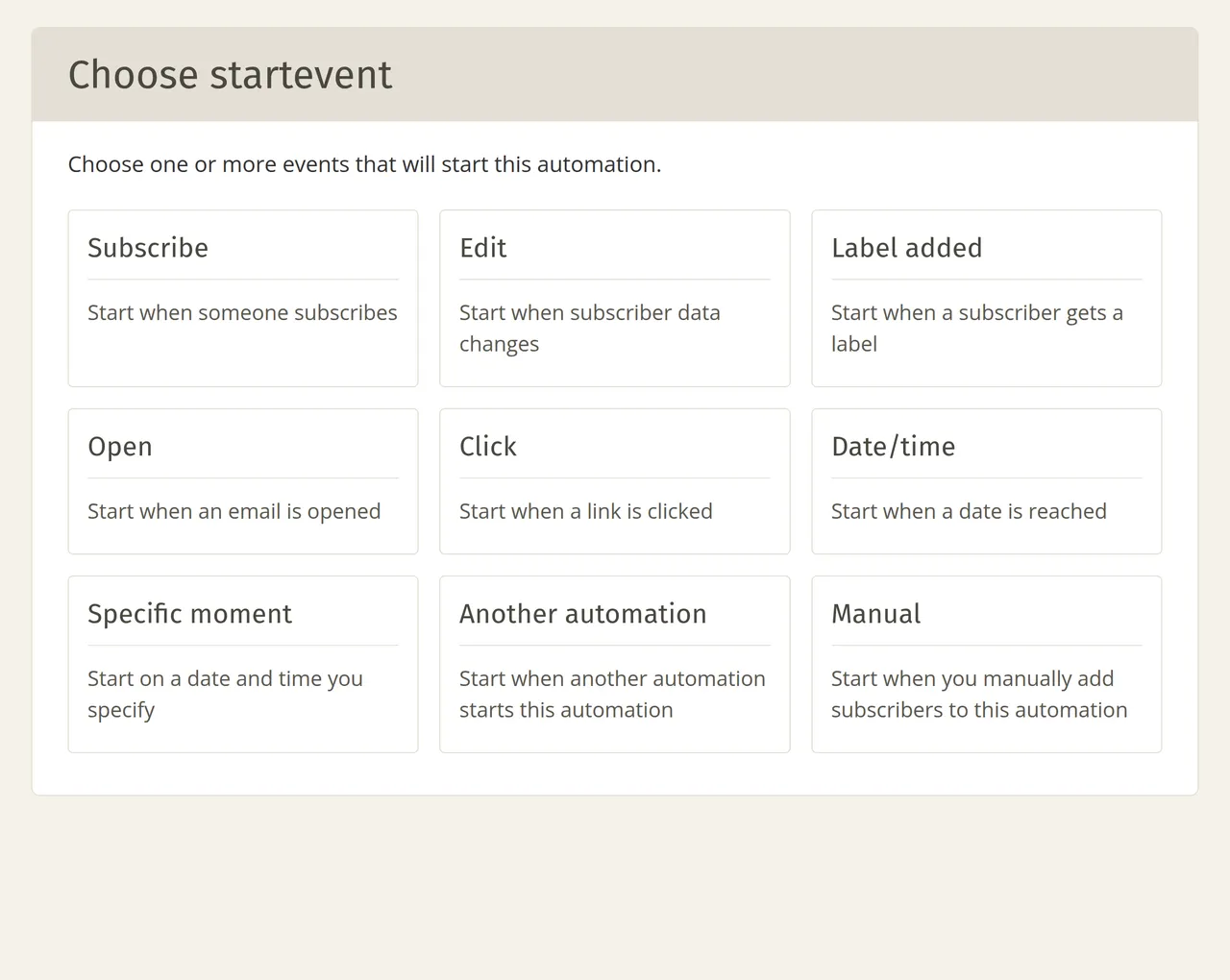
Choose which list this applies to and what the source of the subscription must be, and click ‘Save’. You can read about all the options available for the source in Subscribe as starting moment.
Add the Send email action
Drag ‘Send email’ from the ‘Actions’ column to the plus icon below your start event and click the placed block.
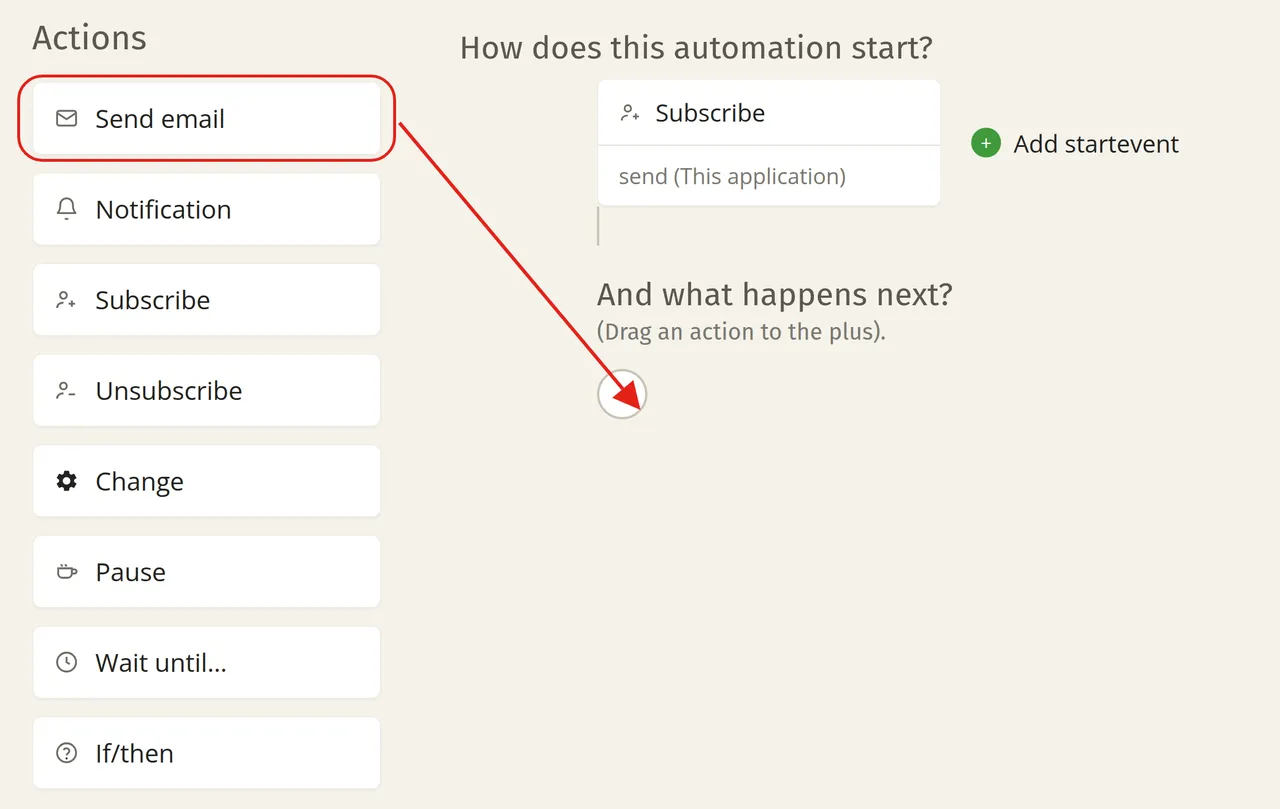
In the window that appears, click ‘Create email’.
Add your campaign to the email
Enter the basic details and select the template you saved in step 2. In step 3, you can add a text block stating that this is your most recently sent newsletter. Check your campaign in step 4 and confirm it at the bottom. Then, in the overview of automations, click ‘Activate’ for this automation. The four steps are explained in more detail in Emails in an automation.
Updating for a subsequent newsletter
The automation will continue to send the email placed in it, even if you have sent a newer newsletter in the meantime. Therefore, save that new campaign as a template again and use it to update the email in this automation, or create a new automation containing the most recently sent campaign.