

Using user management in the management environment
If your organisation works with multiple Laposta accounts under a single management environment, you can view and manage the users of all those accounts from one place. You do not need to log in to each account separately to do this.
User management exists at two levels: within a single account, and in the management environment for all of your organisation’s accounts combined.
Opening user management for an account
In the overview of accounts, the number of users is shown in brackets after each account name. Click on that number to go straight to the user management for that account.

Viewing and exporting users of all accounts
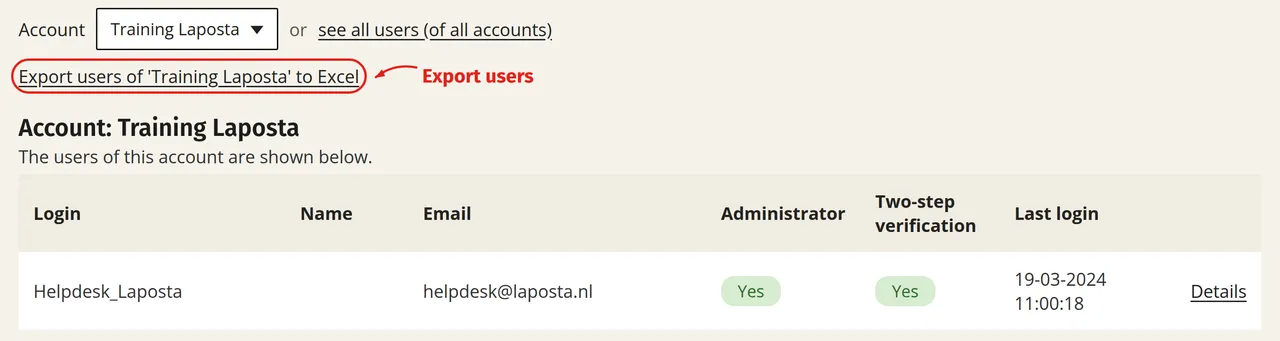
You will land on the account you clicked. Using the drop-down menu above the list, you can switch to another account. You can also click the link ‘see all users (of all accounts)’ for an overview of all users within your organisation. From there, you can export the overview in front of you, whether for one account or for all accounts combined, to an Excel file.
Adding users and configuring permissions
Click ‘New user’ to create an extra login for the selected account. In the list, you can see for each login whether someone is an administrator and whether two-step verification is enabled. You can edit these two settings for each user:
A login is not limited to a single account. You can give a user access to multiple accounts, without giving them access to the management environment itself.