

Setting up two-step verification
With two-step verification (also known as two-step authentication or two-factor authentication, 2FA), you enter an extra code after your login and password. Someone who knows your password will then also need your phone to access your account. This provides better protection for your subscriber data and campaigns.
Enable two-step verification
You can enable two-step verification under Login → Two-step verification.
If you do not see this tab, two-step verification is not yet available for your account. Laposta is enabling it step by step for all accounts. Once it is your account’s turn, the tab will appear automatically.
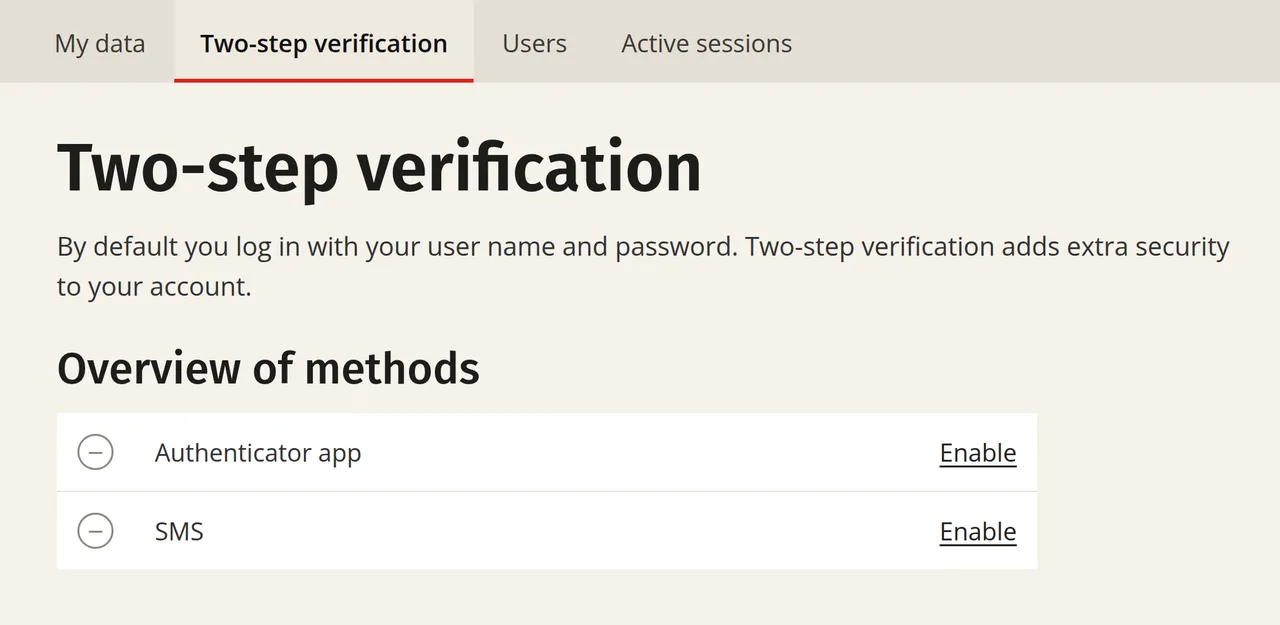
Which methods you can choose depends on your subscription:
You can always reconfigure your method later. With a paid account, you can also turn on both methods at the same time and choose which one to use when logging in.
Logging in for the first time when two-step verification is already mandatory
If two-step verification has been made mandatory in your account, you must first choose and activate a method before you can continue working. Log in with your username and password. You will then automatically be taken to Login → Two-step verification.
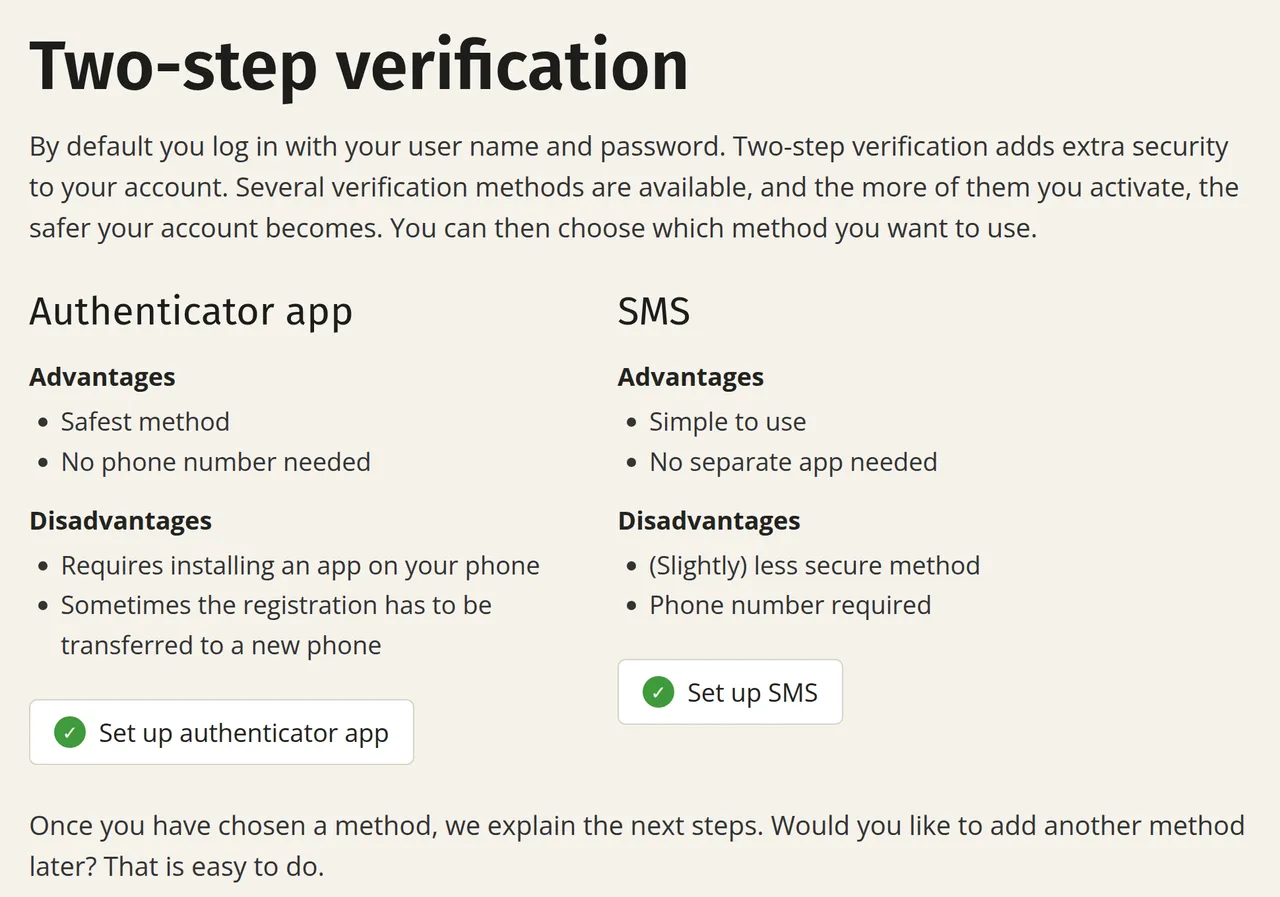
Click ‘Set up authenticator app’ or, if you have a paid account, ‘Set up SMS’.
Checking your email address
The setup takes place on the secure login environment login.laposta.nl. Afterwards, you will automatically return to the application.
Before you set up a method, Laposta checks whether your email address is still correct. This way, Laposta can be sure that you are activating the verification yourself, and not someone else who has obtained your login details. On the ‘Check your email address’ screen, choose ‘Yes, I still have access to this email address’ or ‘No, I want to change my email address’. If you choose to change it, enter the new address. You will receive a verification code at that address which is valid for ten minutes. Confirm your address using that code.
Setting up the chosen method
Authenticator app
SMS
Next to ‘Authenticator app’, click ‘Enable’ and follow the steps:
- Download and install a two-step verification app, such as Google Authenticator (iPhone / Android), Microsoft Authenticator or Authy. For desktop, you can use Proton Authenticator.
- Scan the QR code on the screen with your app. If you do not have a mobile phone and are using a desktop app, click ‘Can’t scan?’ and copy the code to register manually.
- Enter the code from the app.
Afterwards, save your recovery codes and enter a recovery email address. You can read how to do this in Recovery codes and recovery email address.
Logging in with two-step verification
After your login and password, Laposta asks for the code from your authenticator app or the SMS code on your phone. If you tick ‘Do not ask for two-step verification for 30 days’, Laposta will skip the check on that device for 30 days.
Only use this option on a personal computer that is protected with a password.
If you cannot access your code, select ‘Log in with one of your recovery codes’ or ‘Log in with your recovery email address’ in the ‘No longer have access?’ box below the code screen. You can read more about this in Solving problems with two-step verification.
Editing or disabling a method
Go to Login → Two-step verification. Next to an active method you will see ‘Edit’, and next to an inactive method you will see ‘Enable’.
For every change, Laposta first performs a security check: enter a verification code (from your authenticator app or via SMS) and your password, and click ‘Check’.
- Deactivating a method: click ‘Edit’ next to the method and then click ‘Disable’. If two-step verification is mandatory for your account, you cannot disable your last active method and you will see a message stating that authentication is mandatory.
- Switching to a new phone or a different authenticator app: click ‘Edit’ next to ‘Authenticator app’ and then click ‘Replace authenticator app’. This is possible for both free and paid accounts. You do not need to disable anything: the old connection will continue to work until you have confirmed the new app. The steps can be found in Solving problems with two-step verification.
Whenever you add or delete a method or change your email address, you will always receive a confirmation email. If you receive such an email without having changed anything yourself, please contact the helpdesk immediately at helpdesk@laposta.nl.
Making two-step verification mandatory
Laposta is making two-step verification mandatory for all accounts step by step. You can always enable it yourself in advance. If you work with a management environment, the administrator can make it mandatory for all users. If you have a standalone account, you can request this from the helpdesk via helpdesk@laposta.nl.