

What to do if you get a message that your sender address is not in order?
If you want to send a campaign, you might receive one of these two messages:
- ‘Not everything is in order yet. DMARC is configured for the domain of the sender address (domainname.com), so authentication is required. Your emails will currently not reach most recipients. You must set up authentication first before you can send the campaign.’
- ‘No valid sender address. You have selected
name@domainname.comas the sender address for your campaign. That address is not yet available as a sender address. You can select a different address in step 1, or view the sender addresses to configure everything. Afterwards, you can return here to schedule your campaign.’
With ‘No valid sender address’, the issue is not authentication, but that the selected address has not been confirmed yet. You can read how to confirm that address and have the confirmation email resent in Adding a new sender address.
Why you get the ‘Not everything is in order yet’ message
You have selected a sender address for your campaign for which the email provider has changed the settings, possibly between creating and sending the campaign. Usually, this is the domain’s hosting provider, or the IT department at larger organisations. In doing so, they have configured DMARC.
DMARC (Domain-based Message Authentication, Reporting & Conformance) is a security standard that protects email domains against misuse such as phishing and spoofing. It is therefore a good thing that this is enabled, as it protects your email address from being misused as a sender address. Since June 2025, more and more receiving email providers have been setting up extra filters to protect their users against spam. Sending parties are therefore configuring DMARC so that their domain name is more clearly recognisable as a reliable sender.
Check which sender address you are using
First, check which sender address is configured for your campaign. You can see this in step 5, at the Last check and in step 1, at Enter basics. If you have multiple sender addresses in your account, from different domain names or email providers, you can directly select a different sender address in step 1. Save those details and go back to the Last check in step 5.
You can also go to Settings → Senders to view which addresses are available. Next to an address that is not in order yet, you will see a message stating that you must set up authentication first:
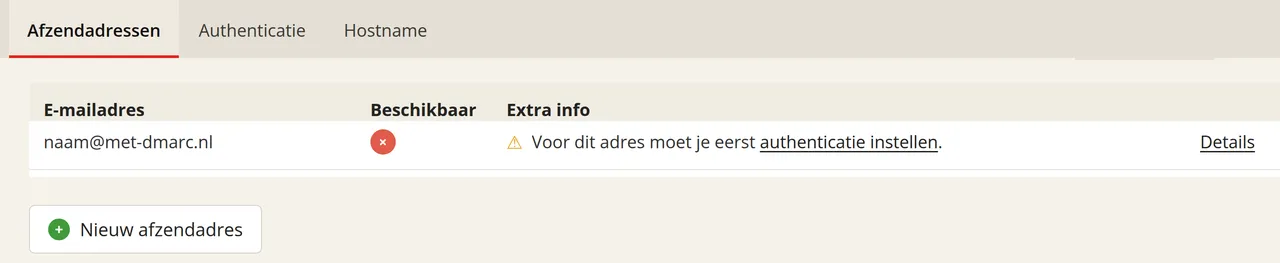
On that same page, you can also add a different address using the ‘New sender address’ button.
Setting up authentication
If you want to continue using the selected sender address, click the ‘set up authentication’ link in the message and follow the step-by-step guide to authenticate your domain. This also includes examples for various hosting providers, so you can configure it yourself. The administrator of your domain name or email server can help you with this.
The Laposta helpdesk cannot set up authentication for you. However, Laposta does show which records you need to add to your DNS settings: two CNAME records and, if Laposta indicates this for your domain, also a DMARC record of the TXT type. You can see where to find these records in the step-by-step guide.
Once you have set up authentication and activated it in your account according to the step-by-step guide, you can use the sender address in your campaign again.